Voxer Bot Attempts

The following are various notes and findings on trying to create a “Bot” for Voxer. Voxer doesn’t really have any options for web hooks, and the SDK is still in beta. We’ll be exploring sending messages to a channel, how to use Curl or Fetch to send messages. Unfortunately, signing in does not appear to be easy to automate.

Looking at Voxer

Voxer is primarily used via the modile apps, but there is also a web version at web.voxer.com

Using Firefox, we can play with the Web Tools to get a better idea of what is going on.

All the Javascript is easily readable. api.js is of interest. This can helps us understand how messages are sent.

The Web interface seems to be somewhat buggy, could be it just doesn’t like going through burp, but had better luck monitoring the channel for new messages from a phone.

Proxying the traffic through Burp is tricky. The log in does not appear to work while the proxy is active, but you can log in, and then activate the proxy to capture and replay sending messages.

If you get “Voxer is open in another tab. Please click ‘OK’ then close this tab.” clear all voxer cookies and log in again. Seems to happen quite often.

Interestingly, if you send a message, then send that message POST request to Repeater, change the text and resubmit it, it “Updates” the text of the message. So if you know the message_id, or maybe the create_time, you can change the text in messages.

About Sending Messages

When you send a message, there are 2 POST requests sent. The first one sends the message and the second one consumes the message. It looks like you really only need the first post message request to actually send messages. Think the consume message post is for the browser to trigger a refresh on the messages in the message list.

There are two variables that change message to message

message_id and create_time

Looking into the api.js file we see that create_time is done with the following code

now = new Date().getTime() / 1000,

And here is the code used to generate the message_id. First part is the time, the next part is random.

window.generate_message_id = function (type) {
        var message_id = new Date().getTime() + "_" + Math.floor((Math.random() * 10000000000) + 1000);

        if (type && type === "image") {
            message_id += "_v1.jpg";
        }

        return message_id;
    };

Structure of the POST request

The following entries are slightly abbreviated

Cookies

There are a bunch of tracking cookies, the session cookie is the one we are interested in. The Rv_session_key is what will allow us to actually send messages. As a side note, it appears that every time we send a message, there is analytics that is also sent, saying who the message was sent to, and when.

session={"gcp1-prod":{"user_id":"MyVoxerUser_ID","Rv_session_key":"db0bc8a069148140151a38bab2098a01"}}

Body

{"message_id":"1681191108600_7318671093","create_time":1681191108,"model":"User_Agent","content_type":"text","from":"MyVoxerUser_ID","subject":"Walkie","body":"This is the text of the message","thread_id":"This.is.the.thread_id"}

Using JavaScript / fetch

After some trial an error, the following solution finally worked. You can copy the following code, and run with “node file.js”

// Change variables as needed
let body = "Hello World!"
// let body = process.argv.slice(2) // You can use this if you want to pass in the message as an argumant. i.e. node voxer.js "Voxer Message"
const threadID = 'ThreadID'
const fromID = 'UserID'
let cookie = `session={"gcp1-prod":{"user_id":"${fromID}","Rv_session_key":"RVSESSIONID"}}`
let time = new Date().getTime() / 1000
let messageID = new Date().getTime() + '_' + Math.floor(Math.random() * 10000000000 + 1000)

// Send message.
function sendMessage () {
  fetch(`https://gcp1-prod-nr60.voxer.com/2/cs/post_message?now=${time}`, {
    credentials: 'include',
    credentials: 'same-origin',
    headers: {
      'User-Agent': 'UserAgent',
      Accept: '*/*',
      'Accept-Language': 'en-US,en;q=0.5',
      'Content-Type': 'text/plain',
      'Sec-Fetch-Dest': 'empty',
      'Sec-Fetch-Mode': 'cors',
      'Sec-Fetch-Site': 'same-site',
      'sec-ch-ua-platform': '"Windows"',
      'sec-ch-ua': '"Opera";v="97", "Chromium";v="97", "Not=A?Brand";v="24"',
      'sec-ch-ua-mobile': '?0',
      Cookie: cookie
    },
    referrer: 'https://web.voxer.com/',
    body: `{\"message_id\":\"${messageID}\",\"create_time\":${time},\"model\":\"\",\"content_type\":\"text\",\"from\":\"${fromID}\",\"subject\":\"CHANGING\",\"body\":\"${body}\\n\",\"thread_id\":\"${threadID}\"}\r\n`,
    method: 'POST',
    mode: 'cors'
  })}

 sendMessage()

You can find the thread_id, user_id, session cookie by toggling the developer console, logging into Voxer, and send a message.
An HTTPS version of Simple Whisper Web Interface

This version is the same as we previously posted, but adds a security certificate, and lots of extra new stuff! You will need a valid certificate, this is fairly easy to setup using Let’s Encrypt, or you could do a self signed certificate.

Setting up Prerequisite

Installing whisper-ctranslate2

pip install -U whisper-ctranslate2

Install NodeJS

sudo apt install nodejs

or

sudo dnf install nodejs

Install Node Dependencies

npm install formidable
npm install https
npm install fs

Setting up Simple Whisper Web Interface

First we need a web directory to use.

Next lets make an uploads folder

mkdir uploads

Code for main.js. Change WEBSITE.COM to your website name. Node will need access to the certificates. You can run this web app as root (If you do that, then root needs node, and prerequisites), or copy the certs to the users directory, and change the path. If you do the later, look at using a script/cronjob to copy the updated certificates to the users directory.

const http = require('http')
const https = require('https')
const formidable = require('formidable')
const fs = require('fs')

const execSync = require('child_process').execSync

let newpath = ''
let modelSize = 'medium.en'
const { exec } = require('node:child_process')
const validModels = [
  'medium.en',
  'tiny',
  'tiny.en',
  'base',
  'base.en',
  'small',
  'small.en',
  'medium',
  'medium.en',
  'large-v1',
  'large-v2'
]

var options = {
  key: fs.readFileSync('/path/to/privkey.pem'),
  cert: fs.readFileSync('/path/to/fullchain.pem')
}
fs.readFile('./index.html', function (err, html) {
  if (err) throw err

  https
    .createServer(options, function (req, res) {
      if (req.url == '/fileupload') {
        res.write(html)
        res.write(`<div class="loading results"></div>`)
        var form = new formidable.IncomingForm()
        form.parse(req, function (err, fields, files) {
          console.log('Fields ' + fields.modeltouse)
          console.log('File ' + files.filetoupload)
          var oldpath = files.filetoupload.filepath
          newpath = './uploads/' + files.filetoupload.originalFilename
          modelSize = validModels.includes(fields.modeltouse)
            ? fields.modeltouse
            : 'medium.en'
          console.log('modelSize::' + modelSize)
          fs.rename(oldpath, newpath, function (err) {
            if (err) {
              console.log('No file selected!') // throw err
              res.write(`<div class="results">No file selected</div>`)
            } else {
              console.log(newpath)
              if (fields.timestamps) {
                      console.log("true check")
                var output = execSync(
                  `./whisper.sh "${newpath}" ${modelSize} "true"`,
                  { encoding: 'utf-8' }
                )
              } else {
                var output = execSync(
                  `./whisper.sh "${newpath}" ${modelSize} false`,
                  { encoding: 'utf-8' }
                )
              }
        res.write(`<script>document.querySelector('.loading').classList.add('hidden')</script>`)
              res.write(
                `<div class="results"><h2>Results:</h2> <p>${output}</p></div>`
              )
              res.end()
            }
          })
        })
      } else {
        res.writeHead(200, { 'Content-Type': 'text/html' })
        res.write(html)
        return res.end()
      }
    })
    .listen(8443)
})

Add the following to index.html

<!DOCTYPE html>
<html lang="en">
  <head>
    <meta charset="UTF-8" />
    <meta http-equiv="X-UA-Compatible" content="IE=edge" />
    <meta name="viewport" content="width=device-width, initial-scale=1.0" />
    <title>Voice Transcribing Using Whisper</title>
    <link type="text/css" rel="stylesheet" href="style.css" />
  </head>
  <style>
    body {
      background-color: #b9dbe7;
      align-items: center;
    }

    .box {
      border-radius: 25px;
      padding: 25px;
      width: 80%;
      background-color: azure;
      margin: auto;
      border-bottom: 25px;
      margin-bottom: 25px;
                    font-family: 'advent_prothin', Arial, sans-serif;
    }

    .button {
      border-radius: 25px;
      margin: auto;
      width: 50%;
      height: 50px;
      display: flex;
      justify-content: center;
      border-style: solid;

      background-color: #e8d2ba;
    }

    h1 {
      text-align: center;
      padding: 0%;
      margin: 0%;
    }
    @font-face {
    font-family: 'advent_prothin';
    src: url('Typewriter.otf');
    font-weight: normal;
    font-style: normal;

}


p {
      font-size: larger;
      font-family: 'MyWebFont', Arial, sans-serif;
    }
    .headings {
      font-size: large;
      font-weight: bold;
    }
    input {
      font-size: medium;
    }
    .checkboxes {
      transform: scale(1.5);
    }
    select {
      font-size: medium;
    }
    .results {
      white-space: pre-wrap;
      border-radius: 25px;
      padding: 25px;
      width: 80%;
      align-self: center;
      background-color: azure;
      margin: auto;
      font-family: Typewriter;
    }
    .hidden {
              display: none;
    }
    .note {
      font-style: italic;
      font-size: small;
      font-weight: normal;
    }
        .loading {
      border: 16px solid azure;
      border-radius: 50%;
      border-top: 16px solid rgb(207, 255, 255);
      width: 64px;
      height: 64px;
      animation: spin 1s linear infinite;
    }
    /* Safari */

    @keyframes spin {
      0% {
        transform: rotate(0deg);
      }
      100% {
        transform: rotate(360deg);
      }
    }
  </style>
  <body>
    <script>
    </script>
    <div class="box">
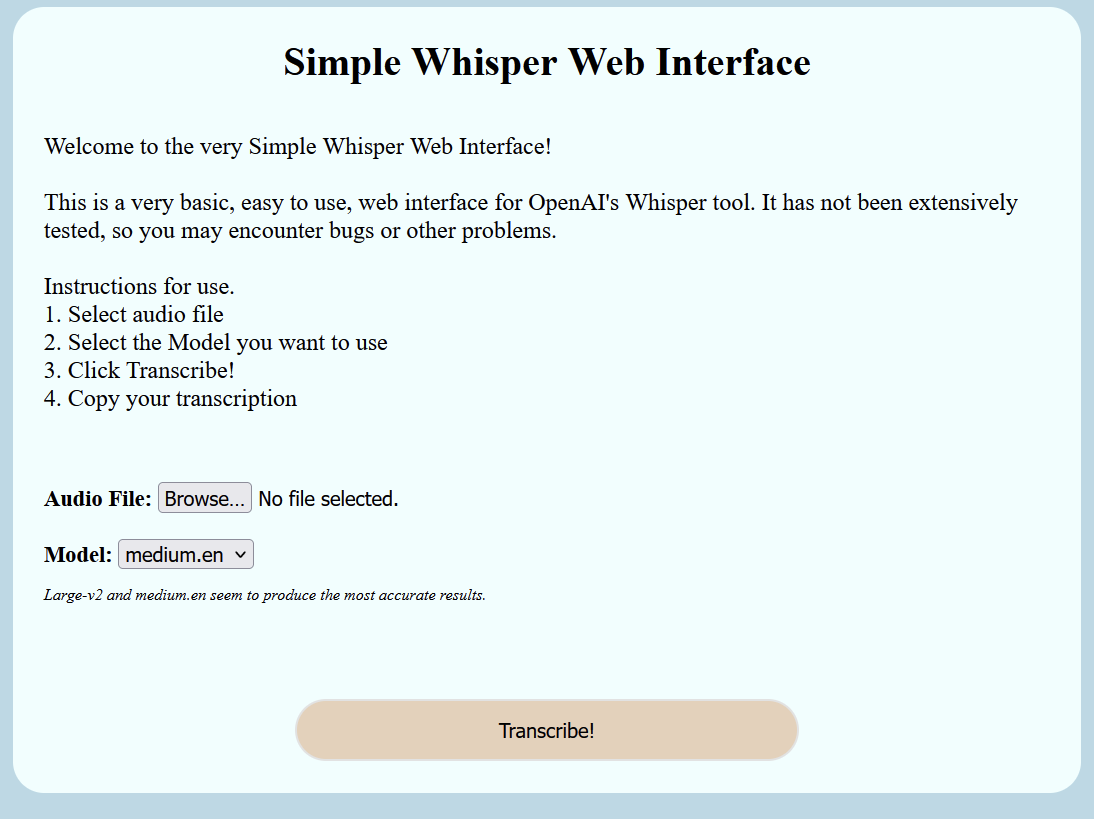
      <h1>Simple Whisper Web Interface</h1>
      <br />
      <p>
        Welcome to the very Simple Whisper Web Interface!<br /><br />
        This is a very basic, easy to use, web interface for OpenAI's Whisper
        tool. It has not been extensively tested, so you may encounter bugs or
        other problems.
        <br /><br />
        Instructions for use. <br />1. Select audio file <br />2. Select the
        Model you want to use <br />
        3. Click Transcribe! <br />4. Copy your transcription
      </p>
      <br />
      <br />
      <div class="headings">
        <form action="fileupload" method="post" enctype="multipart/form-data">
          Audio File: <input type="file" name="filetoupload" /><br />

          <br />
          Model:
          <select name="modeltouse" id="modeltouse">
            <option value="medium.en">medium.en</option>
            <option value="tiny">tiny</option>
            <option value="tiny.en">tiny.en</option>
            <option value="base">base</option>
            <option value="base.en">base.en</option>
            <option value="small">small</option>
            <option value="small.en">small.en</option>
            <option value="medium">medium</option>
            <option value="medium.en">medium.en</option>
            <option value="large-v1">large-v1</option>
            <option value="large-v2">large-v2</option>
          </select>
          <p class="note">
            Large-v2 and medium.en seem to produce the most accurate results.
          </p>
          Timestamps?
          <input class="checkboxes" type="checkbox" id="timestamps" name="timestamps" />
          <br />
          <br />
          <br />
          <input class="button" type="submit" value="Transcribe!" />
        </form>
      </div>
    </div>
  </body>
</html>

Run the server with

node main.js

If we want to start it in the background, run

node ./main.js &

Next steps are to setup a SystemD file so we can auto start on system boot and also make the installation quicker/easier.

A Very Basic Simple Whisper Web Interface

Created a little web interface to use Whisper, technically using whisper-ctranslate2 which is built on faster-whisper.

This is not currently ready to be run on the public web. It doesn’t have any sort of TLS for encrypting communications from client to server and all the files are stored on server. Only use in a trusted environment.

Setting up Prerequisite

Installing whisper-ctranslate2

pip install -U whisper-ctranslate2

Install NodeJS

sudo apt install nodejs

or

sudo dnf install nodejs

Install Node Dependencies

npm install formidable
npm install http
npm install fs

Setting up Simple Whisper Web Interface

First we need a web directory to use.

Next lets make an uploads folder

mkdir uploads

Now let’s create a main.js file. Node is going to be our webserver. Copy the following contents.

var http = require('http')
var formidable = require('formidable')
var fs = require('fs')

const execSync = require('child_process').execSync

let newpath = ''
let modelSize = 'medium.en'
const { exec } = require('node:child_process')
const validModels = [
  'medium.en',
  'tiny',
  'tiny.en',
  'base',
  'base.en',
  'small',
  'small.en',
  'medium',
  'medium.en',
  'large-v1',
  'large-v2'
]
fs.readFile('./index.html', function (err, html) {
  if (err) throw err

  http
    .createServer(function (req, res) {
      if (req.url == '/fileupload') {
        res.write(html)
        var form = new formidable.IncomingForm()
        form.parse(req, function (err, fields, files) {
          console.log('Fields ' + fields.modeltousema)
          console.log('File ' + files.filetoupload)
          var oldpath = files.filetoupload.filepath
          newpath = './uploads/' + files.filetoupload.originalFilename
          modelSize = validModels.includes(fields.modeltouse)
            ? fields.modeltouse
            : 'medium.en'
          console.log('modelSize::' + modelSize)
          fs.rename(oldpath, newpath, function (err) {
            if (err) {
              console.log('No file selected!') // throw err
              res.write(`<div class="results">No file selected</div>`)
            } else {
              console.log(newpath)
              const output = execSync(
                `whisper-ctranslate2 ${newpath} --model ${modelSize}`,
                { encoding: 'utf-8' }
              )

              res.write(
                `<div class="results"><h2>Results:</h2> <p>${output}</p></div>`
              )
              res.end()
            }
          })
        })
      } else {
        res.writeHead(200, { 'Content-Type': 'text/html' })
        res.write(html)
        return res.end()
      }
    })
    .listen(8080)
})

Now create an index.html file and paste the following in

<!DOCTYPE html>
<html lang="en">
  <head>
    <meta charset="UTF-8" />
    <meta http-equiv="X-UA-Compatible" content="IE=edge" />
    <meta name="viewport" content="width=device-width, initial-scale=1.0" />
    <title>Voice Transcribing Using Whisper</title>
    <link type="text/css" rel="stylesheet" href="style.css" />
  </head>
  <style>
    body {
      background-color: #b9dbe7;
      align-items: center;
    }

    .box {
      border-radius: 25px;
      padding: 25px;
      width: 80%;
      background-color: azure;
      margin: auto;
      border-bottom: 25px;
      margin-bottom: 25px;
    }

    .button {
      border-radius: 25px;
      margin: auto;
      width: 50%;
      height: 50px;
      display: flex;
      justify-content: center;
      border-style: solid;

      background-color: #e8d2ba;
    }

    h1 {
      text-align: center;
      padding: 0%;
      margin: 0%;
    }

    p {
      font-size: larger;
    }
    .headings {
      font-size: large;
      font-weight: bold;
    }
    input {
      font-size: medium;
    }
    select {
      font-size: medium;
    }
    .results {
      white-space: pre-wrap;
      border-radius: 25px;
      padding: 25px;
      width: 80%;
      align-self: center;
      background-color: azure;
      margin: auto;
    }
    .note {
      font-style: italic;
      font-size: small;
      font-weight: normal;
    }
  </style>
  <body>
    <script></script>
    <div class="box">
      <h1>Simple Whisper Web Interface</h1>
      <br />
      <p>
        Welcome to the very Simple Whisper Web Interface!<br /><br />
        This is a very basic, easy to use, web interface for OpenAI's Whisper
        tool. It has not been extensively tested, so you may encounter bugs or
        other problems.
        <br /><br />
        Instructions for use. <br />1. Select audio file <br />2. Select the
        Model you want to use <br />
        3. Click Transcribe! <br />4. Copy your transcription
      </p>
      <br />
      <br />
      <div class="headings">
        <form action="fileupload" method="post" enctype="multipart/form-data">
          Audio File: <input type="file" name="filetoupload" /><br />

          <br />
          Model:
          <select name="modeltouse" id="modeltouse">
            <option value="medium.en">medium.en</option>
            <option value="tiny">tiny</option>
            <option value="tiny.en">tiny.en</option>
            <option value="base">base</option>
            <option value="base.en">base.en</option>
            <option value="small">small</option>
            <option value="small.en">small.en</option>
            <option value="medium">medium</option>
            <option value="medium.en">medium.en</option>
            <option value="large-v1">large-v1</option>
            <option value="large-v2">large-v2</option>
          </select>
          <p class="note">
            Large-v2 and medium.en seem to produce the most accurate results.
          </p>
          <br />
          <br />
          <br />
          <input class="button" type="submit" value="Transcribe!" />
        </form>
      </div>
    </div>
  </body>
</html>

Now we should be set to go.

Fire the web server up with

node ./main.js

If we want to start it in the background, run

node ./main.js &

Known Limitations or Bugs

If you hit Transcribe with no file selected, the server crashes.

We are calling whisper-ctranslate2 directly, if it is not in the path, then it won’t work.

We are currently using the medium.en model, if the model is not downloaded, then the first transcription may take awhile while it downloads. Would like to add a menu for selecting which model to use. We fixed this by adding a drop down that let’s you select a model.

Would be nice to have an option for getting rid of the timestamps.

Improving Accuracy for OpenAI’s Whisper

We can use prompts to improve our Whisper transcriptions.

We can add “–initial_prompt” to our command like the following.

--initial_prompt "Computer Historical etc"

We can also look into suppressing Tokens to eliminate words that we won’t use. Believe we need to find the tokens for words, and then we can use the token ID to ignore those words. More links below.

https://github.com/openai/whisper/blob/15ab54826343c27cfaf44ce31e9c8fb63d0aa775/whisper/decoding.py#L87-L88

https://platform.openai.com/docs/guides/speech-to-text/prompting

https://github.com/openai/whisper/discussions/355

https://github.com/openai/whisper/discussions/117

https://huggingface.co/blog/fine-tune-whisper

https://discuss.huggingface.co/t/adding-custom-vocabularies-on-whisper/29311/2?u=nbroad

Creating a Simple systemd Service to Launch Shell Script on System Boot

We will setup a simple systemd service to automatically run a bash script on system boot.

Create systemd file

Create the service file with

vi /etc/systemd/system/multi-user.target.wants/bashscript.service

Now fill out the file. Change the Description and ExecStart. After= means only start this unit after the other units have finished. This is needed if we need to make a network connection. If our script runs before the network is up, the connection will fail.

[Unit]
Description=systemd Unit File to Launch Bash Script on System Boot
After=network.target
After=syslog.target

[Install]
WantedBy=multi-user.target

[Service]
ExecStart=/home/user/script.sh

Change the ExecStart to your bash script and save the file

Enable systemd file

Now that the file is created, we need to enable the service so it starts on system boot

systemctl enable bashscript.service

You should get the following output.

Created symlink /etc/systemd/system/multi-user.target.wants/bash.service → /etc/systemd/system/bash.service.

Now to test, reboot your system, or start the service with

systemctl start bashscript.service

Checking Email Blacklist and Getting Delisted

What do you do when your email server has been blacklisted and you are unable to send emails to certain domains? It’s best to be proactive and not get on the blacklists in the first place, but in the unfortunate event you do get blacklisted, here are some notes.

Checking Blacklists

First thing is we need to see which lists we are on. There are a couple of services that check multiple blacklists

https://mxtoolbox.com/blacklists.aspx

https://blacklistchecker.com/

These should give you an idea of which ones we need to go request a delisting.

att.net (yahoo.com, bellsouth.net)

AT&T is tricky as they don’t have an online site to show if you are blacklisted or not. They don’t seem very responsive and it can take awhile.

https://www.att.com/esupport/postmaster/

Send an email to “abuse_rbl@abuse-att.net” with your Mail Server IP address, the domain and ask to be delisted. You should get an auto-reply and then they usually will do something about it in 24-48 hours

More information below

https://pinpointe.com/blog/how-to-check-att-blacklist-request-ip-removal/

Other Blacklist

These are all fairly straight forward to check out. Some of them you will need to enter in an email, or maybe set up an account, others are as simple as requesting the IP to be delisted.

http://www.sorbs.net/menu.shtml

https://www.spamcop.net/

https://barracudacentral.org/rbl/removal-request

Using FasterWhisper on Ubuntu

faster-whisper is a faster implementation of OpenAI’s Whisper.

https://github.com/guillaumekln/faster-whisper

Someone else has added a “front end” to it so we can just about use it as a drop in replacement for Whisper.

https://github.com/jordimas/whisper-ctranslate2

We can easily install it with pip.

pip install -U faster-Whisper
pip install -U whisper-ctranslate2

For some reason initially the quality was worse then vanilla Whisper. Adding the “–compute_type float32” option improved the quality to where there was not any difference between them.

How to Bypass NVIDIA NVENC Limits on RTX Cards on Linux

It appears that NVIDIA has limited the number of NVEncoding streams on consumer GPUs. Guess it is so people have to buy the more expensive professional cards.

Fortunately, the limit is only applied to the driver, and there is a patch available that let’s us bypass the limiter.

https://github.com/keylase/nvidia-patch

Install Patch

This assumes you already have the driver installed. If you do not, or run into issues with the commands below, refer to the above link.

Download the tool

https://github.com/keylase/nvidia-patch/archive/refs/heads/master.zip

wget https://github.com/keylase/nvidia-patch/archive/refs/heads/master.zip

Unzip the file

unzip nvidia-patch-master.zip

Run the patch script

cd nvidia-patch-master
sudo bash ./patch.sh

And we are finished!

Further reading

NVIDIA has a matrix of which cards support how many streams etc.

https://developer.nvidia.com/video-encode-and-decode-gpu-support-matrix-new

And while we are on the topic of artificial limits, check out the vGPU license bypass

https://github.com/KrutavShah/vGPU_LicenseBypass

Send an Email with Node.JS

In this post, we will be using Node.JS and the nodemailer library to send email. We need to have an email account with an email provider to send email. Gmail or some other email provider should work.

Prerequisites

First lets install some tools

sudo apt install nodejs npm

Now lets install nodemailer

npm install nodemailer

Writing the Code to Send Email

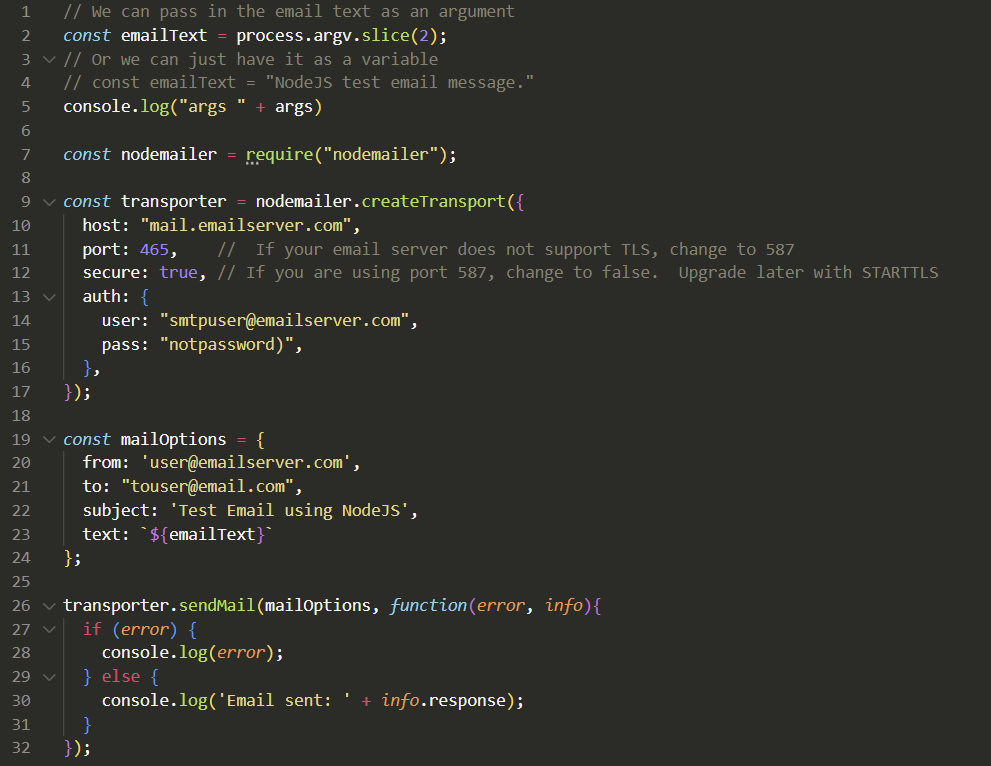
Now that we have nodemailer installed, we can write or copy our code. Create a file called maill.js and make it look similar to the following.

// We can pass in the email text as an argument
const emailText = process.argv.slice(2);
// Or we can just have it as a variable
// const emailText = "NodeJS test email message."
console.log("args " + args)

const nodemailer = require("nodemailer");

const transporter = nodemailer.createTransport({
  host: "mail.emailserver.com",
  port: 465,    //  If your email server does not support TLS, change to 587
  secure: true, // If you are using port 587, change to false.  Upgrade later with STARTTLS
  auth: {
    user: "smtpuser@emailserver.com",
    pass: "notpassword)",
  },
});

const mailOptions = {
  from: 'user@emailserver.com',
  to: "touser@email.com",
  subject: 'Test Email using NodeJS',
  text: `${emailText}`
};

transporter.sendMail(mailOptions, function(error, info){
  if (error) {
    console.log(error);
  } else {
    console.log('Email sent: ' + info.response);
  }
});

Update the following variables

  • host: to your host email server
  • user: to the email user that is sending email. It should have an account on the email server
  • pass: password for your email user that is sending the email
  • from: email address that is sending the email
  • to: email account(s) you are sending email to
  • subject: subject of your email

Now we can proceed to send email

Sending Email

We can now run the code by saving our file and running it directly with NodeJS

nodejs ./mail.js "This is the body text for the email"

Hit Return and look for the email. If something went wrong, it should throw an error.

You can change the emailText variable if you would rather have the message body inside the code.

Code Explanation and Notes

A little explanation on the code.

The second line “const emailText = process.argv.slice(2);” is used to pass in a command line argument to use as the text for the body of the email. You can delete the line and uncomment line 4 if you would rather use a variable inside the code.

Your email server should support using SSL/TLS on port 465. If it does not, you may need to use STARTTLS which uses port 587, and then set secure to false. STARTTLS should upgrade the connection to be encrypted. But it’s opportunistic. You can read more about STARTTLS, SSL/TLS here https://mailtrap.io/blog/starttls-ssl-tls/

You can change the “to: ” in the mailOptions object to an array of email addresses to send the email to multiple people at once.

to: ["email1@email.com", "email2@email.com", "etc"],