How to Archive UniFi Protect Footage

Here are some links and notes on archiving a UniFi Protect’s footage.

Apparently, the .ubv files just need to be remuxed to .mp4 so they are easily playable. On the UniFi Protect appliances, they have a ubnt_ubvexport and ubnt_ubvinfo binary that can do the remux. You can copy the binary off and run it with QEMU on x86 hardware.

Helpful Links.

https://github.com/danielfernau/unifi-protect-video-downloader

https://github.com/petergeneric/unifi-protect-remux

https://durdle.com/2022/01/22/extract-unifi-protect-video/

RSYNC

We can setup rsync to copy the raw footage off the Unifi Protect appliance. Once we have it locally, we can use the remux tool to convert the files to .mp4 so we can easily view them.

A cool thing about using rsync, is if our copy gets interrupted, we can just rerun the command and it will pick up where it left off without duplicating anything.

The following command is a mouthful. It searches for all the recorded video files for cameras with the MAC addresses specified. (MAC addresses can be found from the web interface), There are only a couple things to change or tweak for the command to work for you.

MAC1 should be the MAC address of camera 1 while MAC2 is the MAC address of the next camera we want to archive.
Change the dst_directory to the archive directory or drive.
And of course we need to change the IP address (10.0.0.1) to the UniFi Protect IP address.

ssh root@10.0.0.1 'find /srv/unifi-protect/video/ \( -name "MAC1*" -o -name "MAC2*" \) -printf %P\\0\\n' | rsync -a -v --exclude="*timelapse*" --files-from=- root@10.0.0.1:/src/unifi-protect/video/ dst_directory/

Here are the details for the commands.

  • -printf %P\\0\\n : Don’t print the full path, i.e. “/src/unifi-protect/video/”
  • -name “MAC1*” : Search for recording files that start with camera mac1 address.
  • -o -name “MAC2*” : Let’s us search for multiple “cameras” add more -o -name “mac3*” etc
  • rsync
  • -a : archive mode, copies date, permissions etc.
  • -v : verbose output. Not needed, but it is nice to see what it is copying.
  • –exclude=”*timelapse*” : Exclude timelapse files. Remove this if you want to archive them.
  • –files-from=- : Tells rsync to use the standard input for the list of files to download.
  • root@10.10.1.1:/src/unifi-protect/video/ : This is the source directory for where the video files are located
  • /archive/directory : The path where we are archiving the video footage.

Acquire ubnt_ubvinfo from UDM

Before we can use remux, we need to setup a local copy of ubnt_ubvinfo.

You should be able to use the following scp command to copy the ubnt_ubvinfo or ubnt_ubvexport binary from the UniFi Protect appliance.

scp root@10.0.0.1:/usr/share/unifi-protect/app/node_modules/.bin/ubnt_ubvexport ./

To install on Intel or AMD CPU’s, check out the following section on the unifi-protect-remux page.

https://github.com/petergeneric/unifi-protect-remux#quick-start-for-x86-linux

As a side note, it looks like you can download an old x86 version of ubnt_ubvinfo from archive.org. Use at your own discretion.

wget https://archive.org/download/ubnt_ubvinfo/ubnt_ubvinfo

Install unifi-protect-remux

Install ffmpeg

apt install -y ffmpeg

or

dnf install -y ffmpeg

Now we can download and install remux.

wget https://github.com/petergeneric/unifi-protect-remux/releases/download/v3.0.6/remux-x86_64.tar.gz
tar zxf remux-x86_64.tar.gz
sudo mv remux /usr/bin/

Now we can remux the files.

remux --with-audio=true dst_directory/*.ubv

You will need to script a way to recursively loop through the directories, or just do it manually.

CSS Tips

Here is some simple CSS code snippets that I have found useful.

Disable over scroll effect

html {
  overscroll-behavior: none
}

https://developer.mozilla.org/en-US/docs/Web/CSS/overscroll-behavior

Radial gradient to cover all of the background

html {
  width: 100vw;
  min-height: 100vh;
  background: radial-gradient(#676767, #232323);
}

Overlay that blurs and dims background

.overlay {
  position: absolute;
  top: 0;
  left: 0;
  height: 100%;
  width: 100%;
  background-color: rgba(0, 0, 0, 0.6);
  backdrop-filter: blur(5px);
  z-index: 7;
}

How to Display Pictures on NodeJS http Server

If you are using http for a NodeJS application, you may have run into an issue where none of your images are loading on a site. Instead you are greeted with nice little “no image” logos.

The issue is that our NodeJS server has not been instructed to load anything other than index.html. So other things like images, or even CSS from our style.css file wont work properly.

To fix the issue, we need to to tell NodeJS what to do when other files are requested. As a side note, the person browsing the site may not be requesting the resources directly, but index.html file requests the css file or images hence creating a new web request.

Let’s say we are starting with the following code as a starting point.

var http = require('http')
var fs = require('fs')
var path = require('path')
var url = require('url')

http
  .createServer(function (req, res) {
    let pathname = url.parse(req.url).pathname
    if (
      req.method === 'GET' &&
      (pathname === '/' || pathname === '/index.html')
    ) {
      res.setHeader('Content-Type', 'text/html')
      fs.createReadStream('./index.html').pipe(res)
      return
    }
    return res.end()
  })
  .listen(3000)

Our HTML code is very basic.

<html>
<head>Hello World!</head>
<br />
<body><img src="./image.png" width="128"></body>
</html>

When we launch our server with

$ node server.js

We get

The Fix

Essentially what we need to do is tell the server what to do when image.png is requested.

So we can add the following to our server code before the line “return res.end()”

    if (req.method === 'GET' && pathname === '/image.png') {
      res.setHeader('Content-Type', 'image/png')
      fs.createReadStream('./image.png').pipe(res)
      return
    }

And voila! it is fixed!

Taking it Further

We can improve on this and add a favicon, as well as our style sheet.

var http = require('http')
var fs = require('fs')
var path = require('path')
var url = require('url')

http
  .createServer(function (req, res) {
    let pathname = url.parse(req.url).pathname
    if (
      req.method === 'GET' &&
      (pathname === '/' || pathname === '/index.html')
    ) {
      res.setHeader('Content-Type', 'text/html')
      fs.createReadStream('./index.html').pipe(res)
      return
    }
    if (req.method === 'GET' && pathname === '/image.png') {
      res.setHeader('Content-Type', 'image/png')
      fs.createReadStream('./image.png').pipe(res)
      return
    }

    if (req.method === 'GET' && pathname === '/favicon.ico') {
      res.setHeader('Content-Type', 'image/x-icon')
      fs.createReadStream('./favicon.ico').pipe(res)
      return
    }

    if (req.method === 'GET' && pathname === '/style.css') {
      res.setHeader('Content-Type', 'text/css')
      fs.createReadStream('./style.css').pipe(res)
      return
    }
    return res.end()
  })
  .listen(3000)

This will let us put a favicon.ico image to use as a favicon it will use style.css to stylize the website.

We should note that while the above code does work, you will most likely want to use something like express.
https://github.com/expressjs/express

You can also find better code implementations others of done online.

https://stackoverflow.com/questions/5823722/how-to-serve-an-image-using-nodejs

Links for setting up a custom SSL Certificate on a UniFi Cloud Key

Here are some links for setting up a custom SSL Certificate of a UniFi Cloud Key. Should be similar to do on a UDM, or other UniFi Controller.

https://community.ui.com/questions/How-to-install-a-SSL-Certificate-on-Unifi-Cloud-Key/944dbbd6-cbf6-4112-bff5-6b992fcbf2c4

https://community.spiceworks.com/how_to/128281-use-lets-encrypt-ssl-certs-with-unifi-cloud-key

https://www.ssldragon.com/how-to/install-ssl-certificate/unifi-cloud-key/

Add a Button/Change Menu Item Color to WordPress Menu Bar

The following article was helpful in getting started adding a button to the WordPress menu bar.

https://www.wpbeginner.com/wp-tutorials/how-to-add-a-button-in-your-wordpress-header-menu/

Modifying a Menu Item on a WordPress theme is not too difficult. The basic steps are

  1. Add Menu Item
  2. Add CSS Class to specific menu item
  3. Customize the new CSS class by using the Additional CSS Options

Add Menu Item

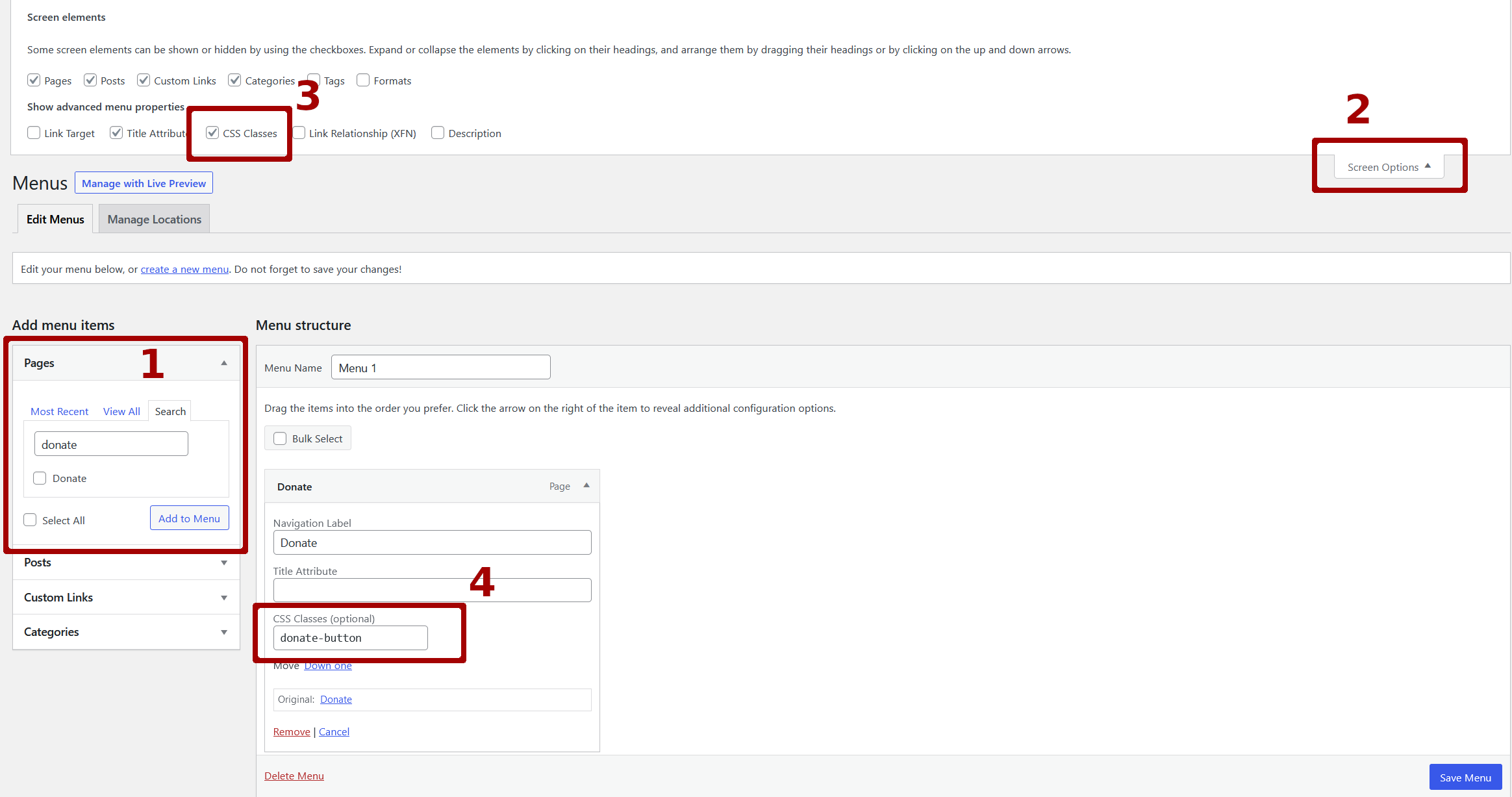
Add or customize a menu item by going to Appearance -> Menu

Add a CSS Class to Menu Item

You can add a CSS class to an existing menu item, or you can create a new menu item.

  1. Create Menu Item
  2. Select Screen Options
  3. Enable CSS Classes. (Needed for the next step)
  4. Under the Menu option, set a CSS class. (Name it something unique so it doesn’t interfere with other CSS classes. We’ll configure the CSS in the next step)

Customize CSS

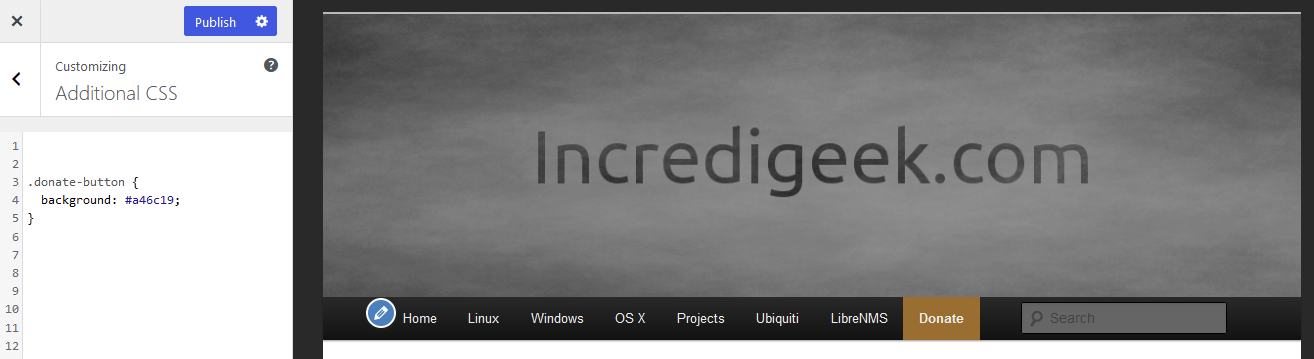
Now we can setup and customize the CSS class by going to Appearance -> Customize

Now find where the “Additional CSS” setting is. If it is not under the main list, try looking under “Advanced”. The Additional CSS editor page should look like the following.

Once there, add all the CSS you want to change color, padding, etc.

You can make it look like a button by adding things like

border-radius: 5px;
padding: 0.5rem;
margin: 0.2rem;

Check out the following link for more info about buttons.

https://www.w3schools.com/csS/css3_buttons.asp

Use Binwalk to extract Ubiquiti Firmware

Download some Ubiquiti firmware

wget https://dl.ubnt.com/firmwares/XC-fw/v8.7.11/WA.v8.7.11.46972.220614.0420.bin

Run binwalk with the -e option to extract the binary file

binwalk -e ./WA.v8.7.11.46972.220614.0420.bin

Binwalk should create a _WA.v8.7.11.46972.220614.0420.bin.extracted directory which we should be able to browse. The main “filesystem” is under squashfs-root.

# ls ./_WA.v8.7.11.46972.220614.0420.bin.extracted/squashfs-root
bin dev etc init lib mnt proc run sbin sys tmp usr var

Information on the mcuser on Ubiquiti Radios

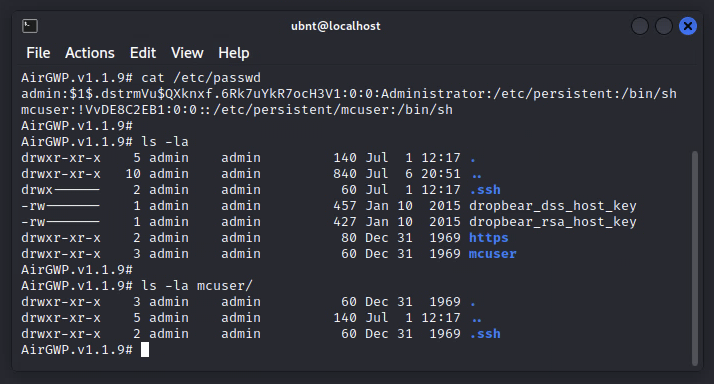
Who is this mcuser on ubiquiti devices? Nothing shows up in the radio config file about it, but the user shows up in /etc/passwd

mcuser is used for AirControl2. If we look what is in the passwd file, we’ll notice that there is a ! at the beginning of the hash. Meaning that this password is disabled as the hash is not a proper hash. It’s only 10 characters long instead of the normal 13 for Unix DES hashes.

mcuser:!VvDE8C2EB1:0:0::/etc/persistent/mcuser:/bin/sh

https://community.ui.com/questions/Virus-atack-v2/be924ab6-5cb0-4f9b-a4f7-246025196cc0?page=10

There is a valid ssh key, so the mcuser can ssh to the device without a password and do what it needs to do. Doing an ls on a device shows the following.

Refer to the following article on removing AirControl Provisioning

Server Logs not Showing up in LibreNMS

The problem: Linux servers have been configured to send their local syslogs to LibreNMS, but are not showing up under the LibreNMS -> DEVICE -> Logs-> Syslog

After a bit of troubleshooting, found that the issue is the hostname being sent with the logs is different than what LibreNMS has for the device. It appears that some Linux distributions will or can use an abbreviated system hostname. There is a section in the LibreNMS docs about this

https://docs.librenms.org/Extensions/Syslog/#matching-syslogs-to-hosts-with-different-names

We can either do what the docs say, or we can set the host name in the rsyslog.conf file on each of the servers.

Log into the server and open up

sudo vi /etc/rsyslog.conf

At the very top, add the following line to set the hostname

$LocalHostName host.server_name_fqdn.com

Save the file and restart rsyslog

sudo systemctl restart rsyslog

Refresh the page to verify the logs are showing up in LibreNMS.

If you are still having issues, you may want to check the following

  1. SELinux on LibreNMS SELinux Audit Commands and Links, Setup LibreNMS as Syslog Server
  2. Firewall on LibreNMS FrDual Zones in Firewalld (Public/Private or External/Internal), Install LibreNMS on CentOS
  3. Read the documentation entirely through

Setup LibreNMS as Syslog Server

Using the LibreNMS documentation for setting up syslog-ng so LibreNMS can ingest logs from Cisco, Mikrotik, Ubiquiti etc. equipment.

https://docs.librenms.org/Extensions/Syslog/

Enable Syslog in LibreNMS settings

First thing we need to do is enable syslog for LibreNMS. Edit the /opt/librenms/config.php and add or enable

$config['enable_syslog'] = 1;

Install and Configure syslog-ng

Install syslog-ng with dnf or yum.

sudo dnf install -y syslog-ng

Create a config file for LibreNMS

vi /etc/syslog-ng/conf.d/librenms.conf

Put the following in the config file

source s_net {
        tcp(port(514) flags(syslog-protocol));
        udp(port(514) flags(syslog-protocol));
};

destination d_librenms {
        program("/opt/librenms/syslog.php" template ("$HOST||$FACILITY||$PRIORITY||$LEVEL||$TAG||$R_YEAR-$R_MONTH-$R_DAY $R_HOUR:$R_MIN:$R_SEC||$MSG||$PROGRAM\n") template-escape(yes));
};

log {
        source(s_net);
        source(s_sys);
        destination(d_librenms);
};

Restart and enable syslog-ng

sudo systemctl restart syslog-ng
sudo systemctl enable syslog-ng

SELinux

If we are running SELinux, we’ll need to make and apply a module to let the logs show up in the web interface.

vi librenms-rsyslog.te

Put the following in the file

module mycustom-librenms-rsyslog 1.0;

require {
        type syslogd_t;
        type httpd_sys_rw_content_t;
        type ping_exec_t;
        class process execmem;
        class dir { getattr search write };
        class file { append getattr execute open read };
}

#============= syslogd_t ==============
allow syslogd_t httpd_sys_rw_content_t:dir { getattr search write };
allow syslogd_t httpd_sys_rw_content_t:file { open read append getattr };
allow syslogd_t self:process execmem;
allow syslogd_t ping_exec_t:file execute;

Now run the following commands to make and apply our SELinux module.

checkmodule -M -m -o librenms-rsyslog.mod librenms-rsyslog.te
semodule_package -o librenms-rsyslog.pp -m librenms-rsyslog.mod
sudo semodule -i librenms-rsyslog.pp

Ubiquiti AirGateway Pro Firmware Download Link

Ubiquiti changed up their download pages and it appears that there is not a page to download the AirGateway Pro firmware.

The normal AirGateway and AirGateway LR use the same firmware. The Pro can use either 2.4 or 5Ghz frequencies and has a different firmware download.

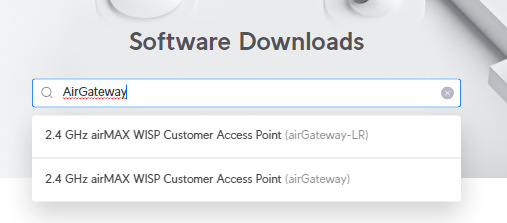
When we search for AirGateway, we only find results for the regular and LR.

There is also no download link on either AirGateway page for the Pro.

https://ui.com/download/software/airgateway

Fortunately, we can copy the download link, and change the firmware name to download the Pro version. All we need to do is change “AirGW” to “AirGWP”

Here is the direct link.

https://dl.ubnt.com/firmwares/airgateway/v1.1.12/AirGWP.v1.1.12.1028.190918.0702.bin