Bash Loop Examples

For i in 1-100 do

Basically count to 100 and perform an operation each time i increases.

for ((i=1; i<=100;i++))
do 
  echo $i
done

for loop 1 liner

for ((i=1; i<=100;i++)) do echo $i ; done

While true (Execute forever)

Handy if you just want a script to run and repeat the same thing over and over again. Doesn't stop till you kill it.

while true
do
  echo "Repeat till infinity"
  sleep 1
done

While command is true

The following will execute the loop as long as the command in the () returns true. Once it returns false, it'll stop the loop

while (fping incredigeek.com | grep alive); 
do
  echo alive
  sleep 1
done
Bash array example

#!/bin/bash
array=(one two three)
echo "Printing first object in array."  #Replace 0 with the place number of the array item
echo ${array[0]}

echo ""

echo "Whole array"
echo ${array[*]} 

echo "" 

echo "Array indexes" 
echo ${!array[*]}

Output

Printing first object in array. 
one

Whole array
one two three

Array indexes
0 1 2

https://www.linuxjournal.com/content/bash-arrays

Ubiquiti AirMax – Set radio to use DHCP from command line

Gain access to radio via ssh

ssh ubnt@192.168.1.20

open up the /tmp/system.cfg

vi /tmp/system.cfg

Delete the following line. To move the cursor to the following line and type “dd” and vi will delete the whole line.

dhcpc.status=disabled   

Add the following 5 lines. Hit “i” to enter vi insert mode.
br0 should be correct interface in most scenarios.

dhcpc.1.devname=br0          
dhcpc.1.fallback=192.168.1.20
dhcpc.1.fallback_netmask=255.255.255.0
dhcpc.1.status=enabled
dhcpc.status=enabled

Save the file by hitting esc and then “:wq” followed by Return/Enter

Save the config changes and reboot the radio so it pulls an address.

/usr/etc/rc.d/rc.softrestart save && reboot

VirtualBox window and menu scaling/text incorrect

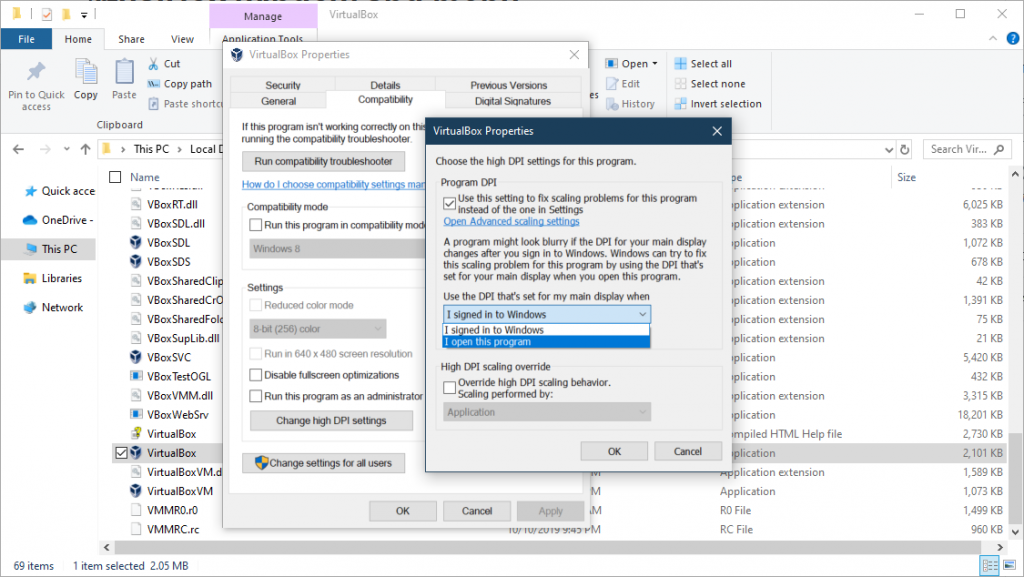
Sometimes the scaling can be wrong on a VM if you plug in a different monitor. You can fix the issue by opening up the location of the VirtualBox executable, right click on it, go to properties > Compatabiltiy > Enable Program DPI > Set to DPI to the Display of my main display when “I open this program”

Save by hitting OK

“C:\Program Files\Oracle\VirtualBox”

Failed to acquire the VirtualBox COM object.

It appears that the issue could be a corrupt VirtualBox.xml file. The one I had did not have anything in it. Removing or moving the file let it create a new one and let VirtualBox actually start.

mv ~/.config/VirtualBox/VirtualBox.xml{,old}

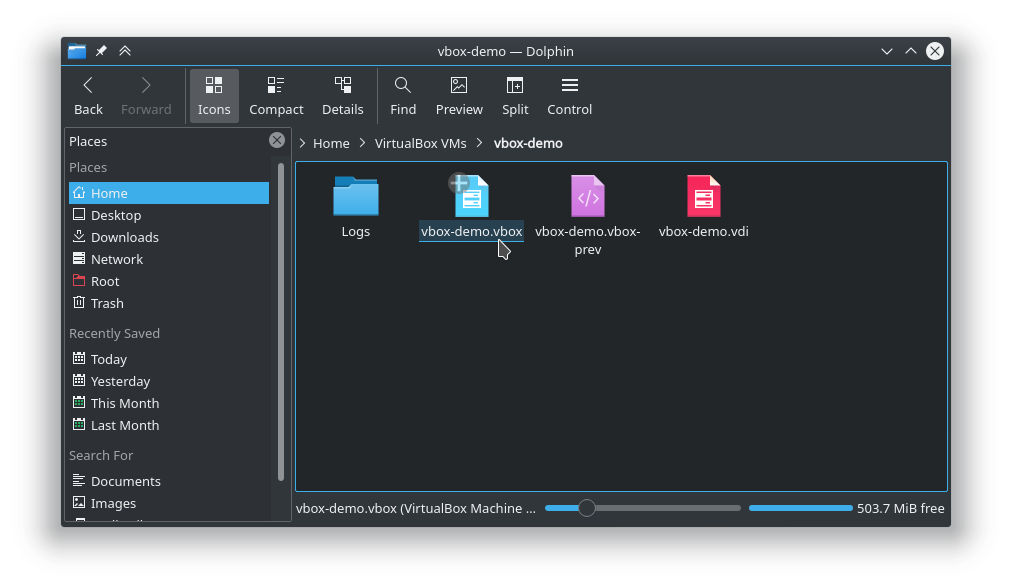
Only problem is that none of the VM’s showed up. Was able to go to the ~/VirtualBox folder in a file browser and launch the vbox file to start the VM

Where is the Trash in KDE?

Where are the trash files stored?

The file location for the trash is in the following directory

~/.local/share/Trash/

Inside there are two folders. info and files.
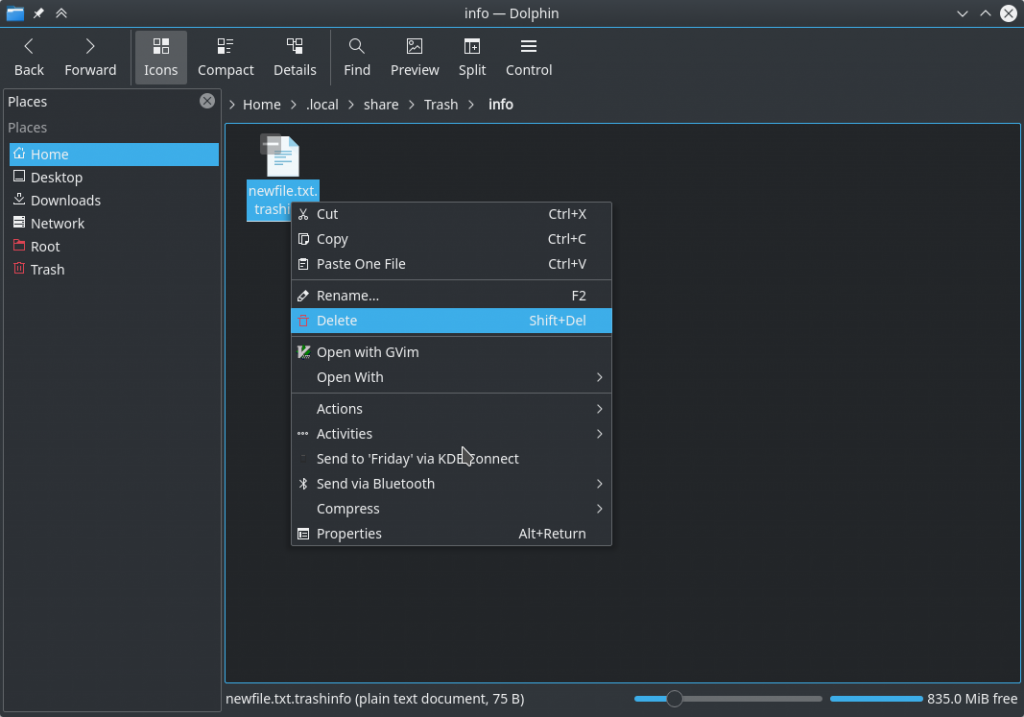
info – Keeps track of what was deleted and where it was
files – Contains the actual files

Delete the files in the Trash

  • First delete the file in the “info” directory
  • Then go delete the files in the “files” directory

To delete the files, select the files then press “Shift + Del”
or right click, hold Shift down and select Delete.

OpenDroneMap – Process drone images

Install docker

sudo apt install docker

Create a new folder for OpenDroneMap to use

mkdir ODM 
cd ODM
mkdir images

Put all your drone images in the new images directory

Run command to process images.

sudo docker run -ti --rm -v ./ODM:/datasets/code opendronemap/odm --project-path /datasets

Note: ./ODM is the folder that the output will be stored. You need your drone images inside an images folder inside your working directory. i.e. Drone images go inside ODM/images