Change VLAN ID Ubiquiti Radio from SSH

First we’ll need to ssh into the device

ssh ubnt@192.168.1.20

Next lets open up the config file

vi /tmp/system.cfg

Now search for vlan and replace the vlan id with the appropriate number

In VI you can search by hitting / and then type in vlan

After you have changed all the vlan ids, save the file with esc, wq, enter.

Now we can save the config with

cfgmtd -f /tmp/system.cfg -w && reboot

Add Custom OID to device in LibreNMS

In the post, we’ll be adding a custom OID for a Ubiquiti Solar Charge Controller.

  • Find the device OID
  • Add the Custom OID in LibreNMS
  • Check the graph

Find the custom OID

Check out the following post if you are trying to add a Ubiquiti Solar Charge controller graph to LibreNMS. Otherwise you may need to do some googling around looking for the OID.

Add Custom OID in LibreNMS

Go to your device -> Settings(Little Gear) -> Custom OID -> +Add New OID

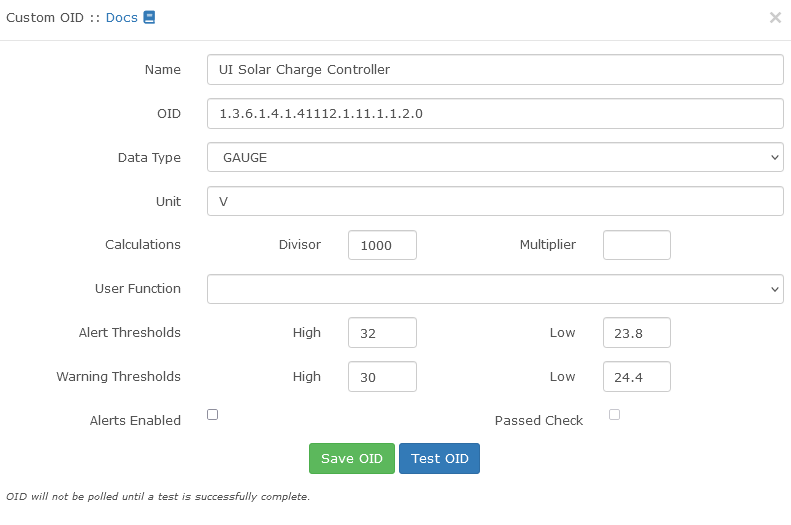
Adding Custom OID in LibreNMS for Ubiquiti UI Charge Controller

Couple notes about the information.
– There needs to be a 0 after the end of the OID.
– Data Type needs to be Gauge, Not Counter. A gauge can go up and down. A counter just counts up.

Hit “Test OID” and you should get a little notification saying it got a value for the OID. In this case 25572.

Test Custom OID in LibreNMS for Ubiquiti UI Charge Controller

Now Hit “Save OID”

Check the Graph

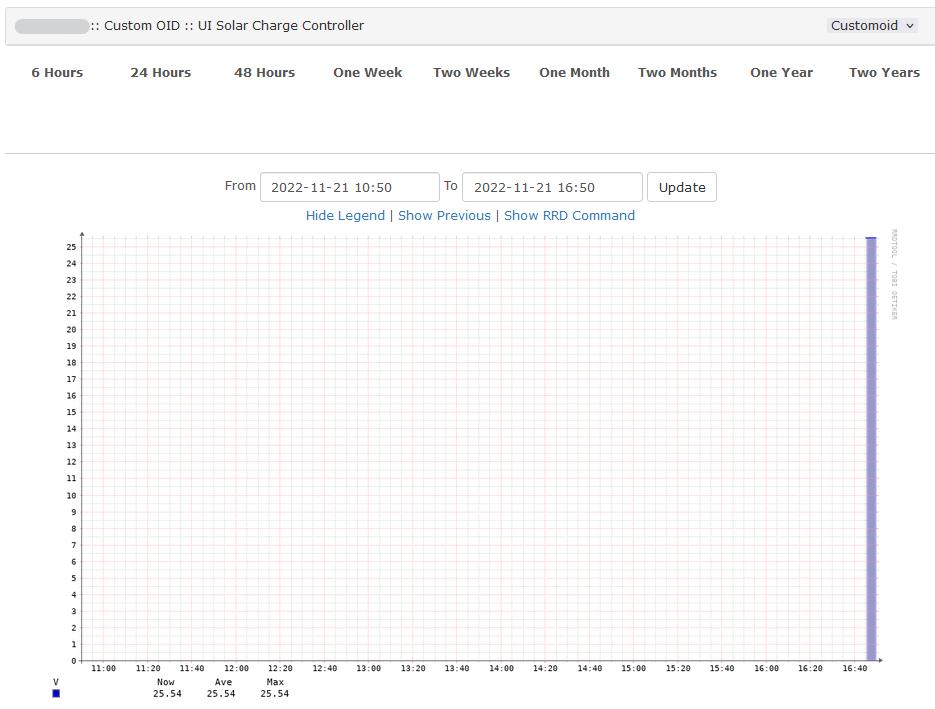
Now LibreNMS should start graphing our Custom OID. You may need to give it a minute to start showing data.

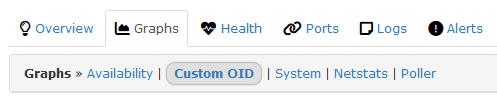
The graphs show up under Graphs -> Custom OID

Where are Custom OID Graphs?
LibreNMS Custom OID Graph

OIDs for UI / Ubiquiti Solar Charge Controller

Here is a list of OIDs for Ubiquiti’s solar charge controller. You can download the

Top interesting ones are

  • Battery Voltage 1.3.6.1.4.1.41112.1.11.1.1.2
  • Panel Voltage 1.3.6.1.4.1.41112.1.11.1.2.2
snmptranslate -Pu -Tz -m ./UBNT-MIB:./UBNT-SUNMAX-MIB
"org"                   "1.3"
"dod"                   "1.3.6"
"internet"                      "1.3.6.1"
"directory"                     "1.3.6.1.1"
"mgmt"                  "1.3.6.1.2"
"mib-2"                 "1.3.6.1.2.1"
"transmission"                  "1.3.6.1.2.1.10"
"experimental"                  "1.3.6.1.3"
"private"                       "1.3.6.1.4"
"enterprises"                   "1.3.6.1.4.1"
"ubnt"                  "1.3.6.1.4.1.41112"
"ubntMIB"                       "1.3.6.1.4.1.41112.1"
"ubntORTable"                   "1.3.6.1.4.1.41112.1.1"
"ubntOREntry"                   "1.3.6.1.4.1.41112.1.1.1"
"ubntORIndex"                   "1.3.6.1.4.1.41112.1.1.1.1"
"ubntORID"                      "1.3.6.1.4.1.41112.1.1.1.2"
"ubntORDescr"                   "1.3.6.1.4.1.41112.1.1.1.3"
"ubntSnmpInfo"                  "1.3.6.1.4.1.41112.1.2"
"ubntSnmpGroups"                        "1.3.6.1.4.1.41112.1.2.1"
"ubntORInfoGroup"                       "1.3.6.1.4.1.41112.1.2.1.1"
"ubntORCompliance"                      "1.3.6.1.4.1.41112.1.2.1.2"
"ubntAirosGroups"                       "1.3.6.1.4.1.41112.1.2.2"
"ubntAirFiberGroups"                    "1.3.6.1.4.1.41112.1.2.3"
"ubntEdgeMaxGroups"                     "1.3.6.1.4.1.41112.1.2.4"
"ubntUniFiGroups"                       "1.3.6.1.4.1.41112.1.2.5"
"ubntAirVisionGroups"                   "1.3.6.1.4.1.41112.1.2.6"
"ubntMFiGroups"                 "1.3.6.1.4.1.41112.1.2.7"
"ubntUniTelGroups"                      "1.3.6.1.4.1.41112.1.2.8"
"ubntAFLTUGroups"                       "1.3.6.1.4.1.41112.1.2.9"
"ubntSunMaxGroups"                      "1.3.6.1.4.1.41112.1.2.10"
"sunMaxCompliances"                     "1.3.6.1.4.1.41112.1.2.10.1"
"sunMaxGroups"                  "1.3.6.1.4.1.41112.1.2.10.2"
"ubntAirFIBER"                  "1.3.6.1.4.1.41112.1.3"
"ubntEdgeMax"                   "1.3.6.1.4.1.41112.1.5"
"ubntUniFi"                     "1.3.6.1.4.1.41112.1.6"
"ubntAirVision"                 "1.3.6.1.4.1.41112.1.7"
"ubntMFi"                       "1.3.6.1.4.1.41112.1.8"
"ubntUniTel"                    "1.3.6.1.4.1.41112.1.9"
"ubntAFLTU"                     "1.3.6.1.4.1.41112.1.10"
"ubntSunMax"                    "1.3.6.1.4.1.41112.1.11"
"sunMaxMIB"                     "1.3.6.1.4.1.41112.1.11.1"
"sunMaxBatteryStats"                    "1.3.6.1.4.1.41112.1.11.1.1"
"sunMaxBatCurrent"                      "1.3.6.1.4.1.41112.1.11.1.1.1"
"sunMaxBatVoltage"                      "1.3.6.1.4.1.41112.1.11.1.1.2"
"sunMaxBatPower"                        "1.3.6.1.4.1.41112.1.11.1.1.3"
"sunMaxBatTemp"                 "1.3.6.1.4.1.41112.1.11.1.1.4"
"sunMaxPvPanelStats"                    "1.3.6.1.4.1.41112.1.11.1.2"
"sunMaxPVCurrent"                       "1.3.6.1.4.1.41112.1.11.1.2.1"
"sunMaxPVVoltage"                       "1.3.6.1.4.1.41112.1.11.1.2.2"
"sunMaxPVPower"                 "1.3.6.1.4.1.41112.1.11.1.2.3"
"sunMaxOutPutStats"                     "1.3.6.1.4.1.41112.1.11.1.3"
"sunMaxOutCurrent"                      "1.3.6.1.4.1.41112.1.11.1.3.1"
"sunMaxOutVoltage"                      "1.3.6.1.4.1.41112.1.11.1.3.2"
"sunMaxOutPower"                        "1.3.6.1.4.1.41112.1.11.1.3.3"
"security"                      "1.3.6.1.5"
"snmpV2"                        "1.3.6.1.6"
"snmpDomains"                   "1.3.6.1.6.1"
"snmpProxys"                    "1.3.6.1.6.2"
"snmpModules"                   "1.3.6.1.6.3"
"zeroDotZero"                   "0.0"

Get battery voltage

We can get the battery voltage from the controller with the following SNMP walk command. Change the community “ubnt” to your SNMP community.

snmpwalk -c ubnt -v2c 10.96.1.9 1.3.6.1.4.1.41112.1.11.1.1.2

Return value is

SNMPv2-SMI::enterprises.41112.1.11.1.1.2.0 = INTEGER: 24990

You may need to add a zero if you are trying to add the OID in LibreNMS for a custom OID.

Install NetworkMiner on Kali Linux

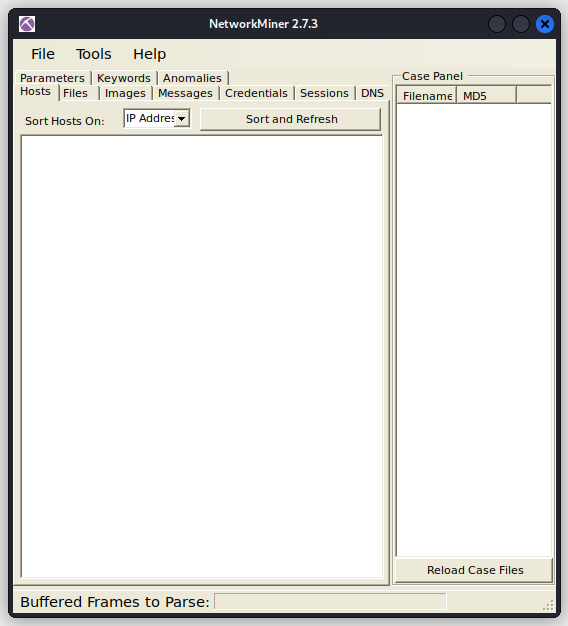
The Network Miner tool is a handy little utility that works great on Windows. It sorta works on Linux. Doesn’t appear to be able to read the traffic coming off the interface, but you can drag and drop a pcap file on it. You can export a pcap file from wireshark, but it needs to be a pcap, not the newer default pcap Wireshark defaults to. Can change it in the “Save as:”

Install Prerequisites

sudo apt install mono-devel

Download and Configure

wget https://www.netresec.com/?download=NetworkMiner -O /tmp/NetworkMiner.zip
sudo unzip /tmp/NetworkMiner.zip -d /opt/
cd /opt/NetworkMiner*
sudo chmod +x NetworkMiner.exe
sudo chmod -R go+w AssembledFiles/
sudo chmod -R go+w Captures/

Should be ready to launch.

Launch Network Miner

mono /opt/NetworkMiner*/NetworkMiner.exe
Network Miner on Kali Linux

Further Thoughts and Reading

You could potentially get a live view of what is going on by using the “Receive Pcap over IP”

Maybe use something like

tcpdump -i wlan0 | nc localhost 57014

The following links should help and provide more information.

https://www.netresec.com/?page=Blog&month=2014-02&post=HowTo-install-NetworkMiner-in-Ubuntu-Fedora-and-Arch-Linux

https://www.netresec.com/?page=Blog&month=2011-09&post=Pcap-over-IP-in-NetworkMiner

List of Default IPv4, IPv6, and MAC Multicast Addresses

Here is a list of common Multicast addresses.

Mac Addresses

LLDP01:80:C2:00:00:0E
CDP (Sends messages to)01:00:0C:CC:CC:CCMore info
MAC address Multicast Addresses

IPv4

OSPF – Neighbor Discovery (All Routers)224.0.0.5
OSPF – DR/BDR224.0.0.6More info
IPv4 Multicast Addresses

IPv6

All IPv6 DevicesFF02::1
All IPv6 RoutersFF02::2
OSPFFF02::5
EIGRPFF02::A
Router Solicitation?FF01::1?
IPv4 Multicast Addresses

How to Verify Signal APK

These steps are for Windows, but they should be very similar on macOS or Linux.

Prerequisites

  1. Android Studio installed
  2. Install the latest SDK

Locate apksigner

Apksigner is part of the Android build tools should be in the SDK directory.

%APPDATA%..\Local\Android\Sdk\build-tools\30.0.0

Lets open up a terminal and navigate to the build-tools. Replace 30.0.0 with the actual SDK version you have installed.

cd .\AppData\Local\Android\Sdk\build-tools\30.0.0

Alternatively use the full path (Replace username and 30.0.0 with actual username and SDK number)

cd C:\User\username\AppData\Local\Android\Sdk\build-tools\30.0.0\

Verify Signal APK

We can now verify the Signal APK with the following. Replace username with your username.

.\apksigner.bat verify --print-certs C:\User\username\Downloads\Signal-Android-website-prod-universal-release-6.0.6.apk

Scroll up to the top part and look for the part that says

Signer #1 certificate SHA-256 digest:

Check the signature against the signature on Signal’s website/

https://signal.org/android/apk/

You may see a bunch of

WARNING: META-INF/xxx.version not protected by signature...

Sounds like this can be expected and is a common thing. The certificate is stored in META-INF which means that other files stored in META-INF are not protected. Most of the files in that directory are only version numbers of libraries the app depends on. There shouldn’t be anything important so shouldn’t be a security concern.

https://stackoverflow.com/questions/52122546/apk-metainfo-warning

Restart UniFi services on UDM

Mark manages the Ubiquiti UniFi applications at Incredigeek Inc. and is unable to access the UniFi controller. It starts loading and then stops. The URL bar shows that it is trying to load a null network site.

Thankfully the WiFi is still working, Mark thinks to himself, but how am I supposed to manage the network? I am able to access the UniFi Core application, so maybe I can login using a secure shell and check on the application.

ssh root@192.168.1.1

Once logged in, and after using the google, he finds that unifi-os restart will restart the UniFi applications. But I just need to restart the Network application. Running “unifi-os” –help reveals the following options.

# unifi-os --help
Usage: /usr/sbin/unifi-os [stop start restart shell 'update url']

Oh shell!

unifi-os shell

Alternatively, we know that on the UDM’s the UniFi Applications are run inside a Docker container. We could run “docker ps” to show the containers and then “docker exec -it unifi-os bash”

Now we can restart just the UniFi Network application.

systemctl restart unifi

It can take a little bit to restart.

Wireshark Filtering

Filter to show DHCP packets

You can find detailed info here. https://wiki.wireshark.org/DHCP

But you should be able to filter out the DHCP request with either

dhcp

or

bootp
Filter DHCP request

Filter by IP Address

ip.addr == 192.168.1.1

Filter by Mac Address

eth.dst == 01:00:5e:7f:ff:fa

Better way to Filter

Wireshark has a robust set of options for filtering items.

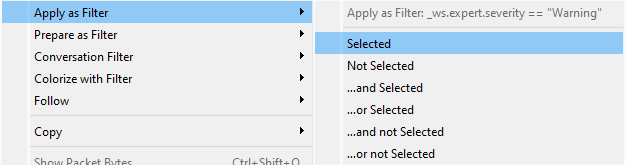
From the Packet Details pane you can select any piece of information you want to filter, right click -> Apply As Filter -> Selected

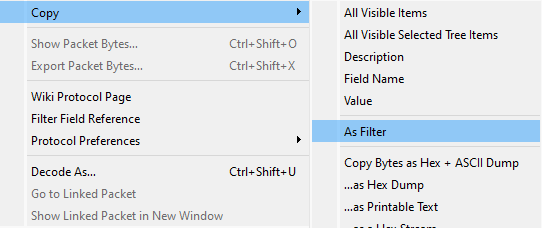
You can also copy it and then past it in the filter bar. Right click -> Copy -> As Filter

Copy As Filter

UDM Pro Error Changing WAN IP Addresses

There appears to be a bug on the UDM Pro that you can encounter while trying to update your WAN IP addresses. The error was similar to “Can’t change IP Address “PublicIP” used in Default Network”

https://community.ui.com/questions/UDM-Pro-Cant-set-Static-IP-Address-on-WAN-interface/9f83c841-da1a-4b16-b963-c4be3ae3fbab?page=2

It appears that the issue stems from the Internet Source IP being used in the LAN Network settings.

The way to work around this is to disable the Internet Source IP. However, this is greyed out which keeps us from making any changes. We can however use the Chrome Developer tools to get around this restriction.

  • Enable the Legacy Interface. UniFi Network Settings -> System -> Legacy Interface
  • Go to Settings -> Networks -> Edit (Select Default Network)
  • Open up the Dev tools with Ctrl + Shift + i and select Console
  • Paste the following in and hit enter
$$('[disabled]').forEach( a => a.disabled=false )
Enable Internet Source IP on UDM Pro
  • Find “Internet Source IP”, Disable and Save!

Swap back to the new user interface and go change the WAN IP address.

Disable Wireless Security (WPA2) Preshared Key on Ubiquiti AC

Update: Found this handy dandy FAQs link https://help.ui.com/hc/en-us/articles/115009192828

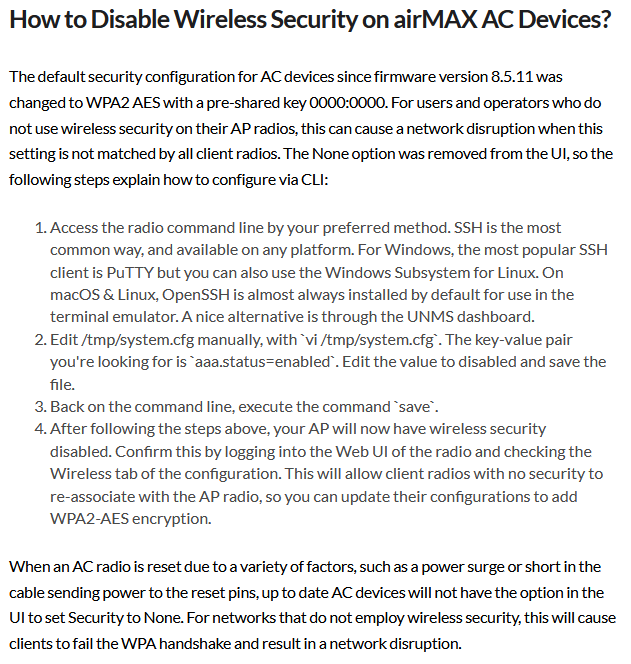
Included in the FAQ is a section on “How to Disable Wireless Security on airMAX AC Devices?”

The default security configuration for AC devices since firmware version 8.5.11 was changed to WPA2 AES with a pre-shared key 0000:0000.

Ubiquiti Default AC device WPA2 Preshared key

On Ubiquiti AC radios, you can not disable WPA 2 security through the web interface. This is not necessarily bad, however, what happens if you have a client that is reset and will only connect to the default ubnt SSID?

Fortunately there is a way to disable the WPA2 Preshared key.

  1. Log into the device over ssh.
  2. Run the following command to disable WPA2 in the config
    sed -i s/aaa.1.wpa.mode=2/aaa.1.wpa.mode=0/g /tmp/system.cfg
  3. Save the config file with
    /usr/etc/rc.d/rc.softrestart save
  4. Login to the client device and configure the SSID.

After you are done, you can click the enable button to re-enable Wireless Security.

Note: aaa.1.wpa.mode=2 doesn’t appear to be on all devices. If not, change “wpasupplicant.status=enabled” to “wpasupplicant.status=disabled”

Screenshot from UI help page on Wireless Security on airMAX AC devices