The following command allows Winbox from the 192.168.0.0/16, and 10.0.10.0/24 network ranges. You can change winbox to ssh or any of the other services in ip services.
ip service set address="192.168.0.0/16, 10.0.10.0/24" winbox

The following command allows Winbox from the 192.168.0.0/16, and 10.0.10.0/24 network ranges. You can change winbox to ssh or any of the other services in ip services.
ip service set address="192.168.0.0/16, 10.0.10.0/24" winbox
To check if SELinux is enabled or disabled, you can us the sestatus command
sestatus
Or you can grep what is in the SELinux config
cat /etc/selinux/config | grep SELINUX=.*abled
In Ubuntu the simplest way to install the VMware tools is through apt.
sudo apt-get install open-vmware-tools
Shouldn’t have to do anything else.
You can also install the tools by hitting Install VMware tools from either the web UI, or vShpere. This will mount a virtual CD on the OS, you can then copy the contents to a local directory in the vm. You can then proceed to install them by extracting the tar file with
tar -xzf VMware*
cd into the new directory
cd vmware*
and run
sudo ./vmware-install.pl
Install NTP
yum install ntp -y
Enable ntpd service
systemctl enable ntpd
Install qemu-img
dnf install qemu-img -y
Convert the image. Change vmimage to your image name.
qemu-img convert -f qcow2 -O vmdk vmimage.qcow2 vmimage.vmdkHad an issue that /run was randomly running out of space which in turn would interfere with the unifi-video service causing it to run, but not record.
/run looks like a tmpfs or ramdisk that Ubuntu sets up. So you can do a “temporary” fix by remounting the tmpfs with a larger size. Example below. If /run is a 2GB directory, you can remount changing the size from 2GB to 2.5GB.
sudo mount -t tmpsfs tmpfs /run -o remount,size=2500M
Note that it is a temporary fix and goes away after a reboot.
The issue ended up being that the WiFi UniFi controller was setup to auto backup everything once a week. So as it was backing stuff up, it would eat up the available space in the tmpfs, think there may be an issue with the size of the UniFi data and maybe not being able to fit it all in RAM?
Running the following command
df -h --max=1 /var | sort
shows the following
1.1M /run/udev
2.5G /run/
2.5G /run/unifi   <-- UniFi controller
4.0K /run/initramfs
8.0K /run/network
12K /run/user
288K /run/samba
404K /run/systemd
Looking inside the unifi directory shows the following folders. Looks like the they are temp files.
200M /run/unifi/ExpTmp351719567129045774
696M /run/unifi/ExpTmp3406220793759111216
1.6G /run/unifi/ExpTmp3368400690321364109
0 /run/unifi/work
2.5G /run/unifi
Running an ls inside the folder shows
-rw-r----- 1 unifi unifi 13971807 Jul 2 02:30 db.gz
-rw-r----- 1 unifi unifi 1665223462 Jul 2 02:56 db_stat.gz
Looking inside the UniFi controller it is set to auto backup on Monday at 2:30AM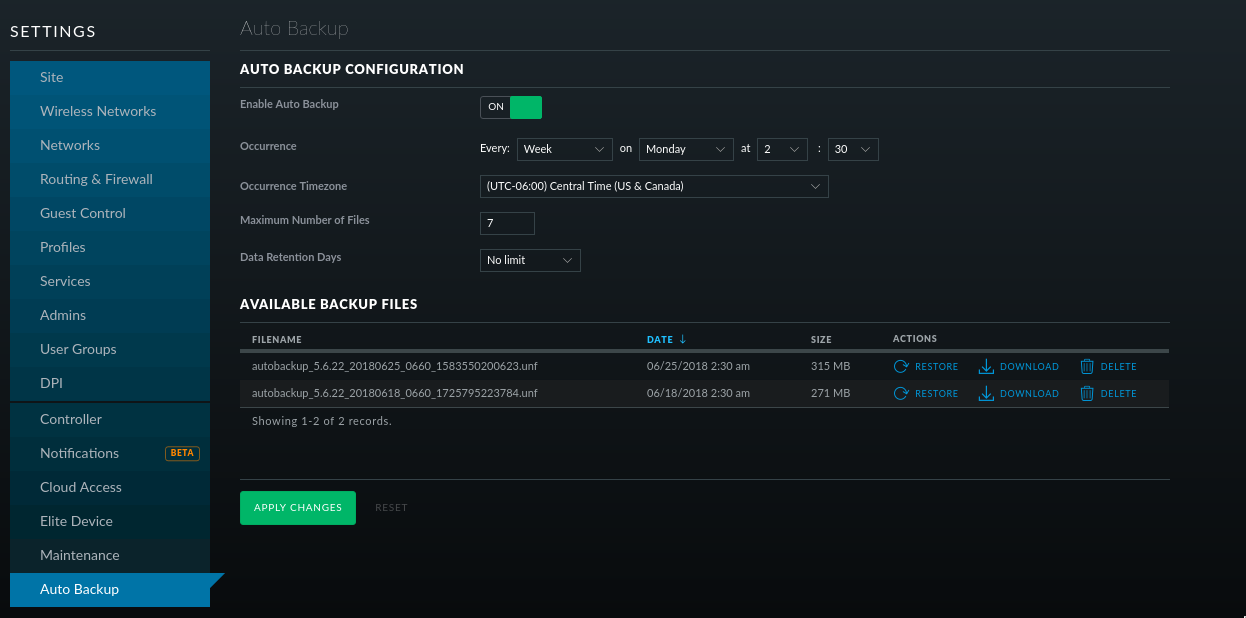
Looks like “/run/unifi” is used as a temporary folder to create the backups and when it is completed converts it to a .unf file and moves it to “/usr/lib/unifi/data/backup/autobackup/” So the left over temp files were never completed or something caused them to stop working. Maybe the backup was big enough to take up all the tmpfs space and cause the backup to fail.
Resolution. To fix the problem I turned the data retention down to a week and deleted the temp files in /var/unifi. Had to sudo su to root. sudo wasn’t cutting it for some reason.
sudo su
rm -rf /var/unifi/Exp*
exit
Should be all good now.
Notes from repairing a Fedora drive.
Mount system in chroot.
If the system is a raid drive and your not able to access it refer to this post. May just need to install the raid utilities.
For mounting the chroot environment refer to this post
Repairing grub
yum install grub2-efi-*
Install grub. Change /sda to your drive, may need to specify the efi partition.
grub2-install /dev/sda
If your boot and efi partitions are mounted.
grub2-mkconfig -o /boot/efi/EFI/fedora/grub.cfg
Reboot.
The reason is probably because the chrooted environment can’t resolve DNS.
Test it with
ping incredigeek.com
If it is not resolving, edit “/etc/resolv.conf” and change/add your nameserver. Or just replace everything in it with
echo "nameserver 4.2.2.2" > /etc/resolv.conf
It should now be able to resolve and you should be able to use yum, or dnf.
yum update
Typically your RAID volumes will show up as /dev/mdXXX
If it is not, it could be because the device mapper module is not loaded. Load it by running the following command.
modprobe dm-modAs a side note you can list the block devices using
dmraid -bhttps://bbs.archlinux.org/viewtopic.php?id=42321
If your still having trouble you can try installing mdadm and dmraid
apt-get install -y dmraid mdadm
Problem: When changing the shader color on a game object, the color on other game objects changes.
Reason: This happens because the other game objects are using the same Mesh Renderer as the game object your modifying. So when your changing the shader, your actually modifying the Mesh Renderer, not the game object.
Fix: Change the Mesh Renderer for the game object.
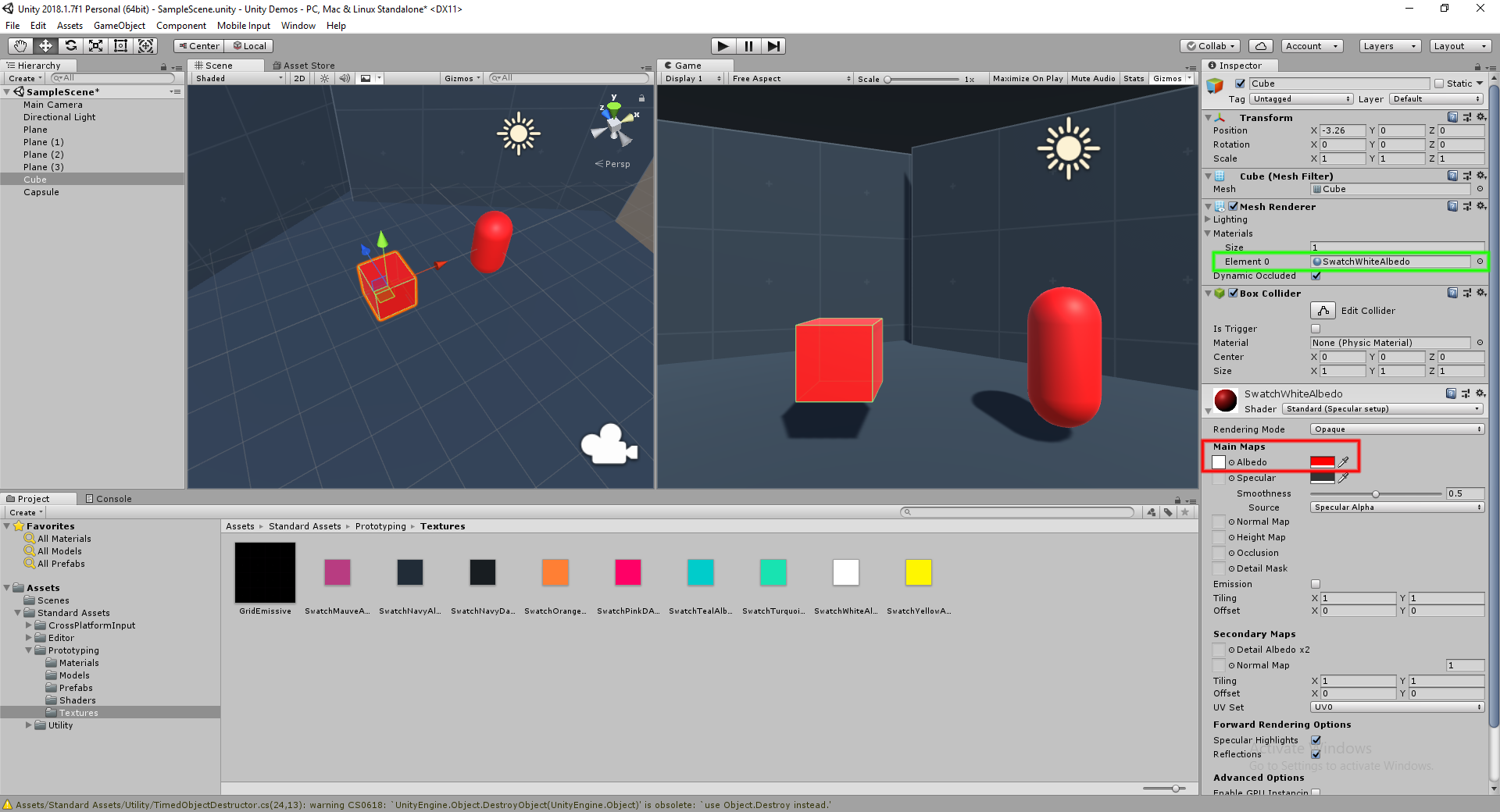
In the example picture below, when you change the color on the cube (highlighted red) the color on the capsule changes, because they both are using the same Mesh Renderer (highlighted green). To fix, change either the Cube or Capsule to a different Mesh Renderer (highlighted green)