What we are going to do is create a proxy using ssh so we can tunnel our web traffic in Firefox through it.
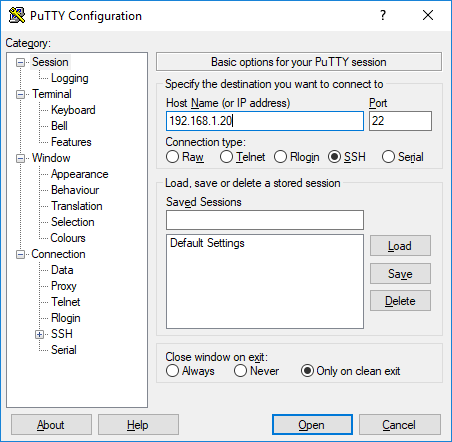
First, launch putty and setup a SSH connection like you normally would.
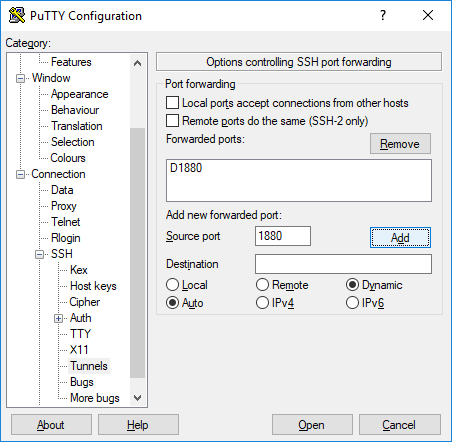
Next, in Putty, go to the Connection, SSH, Tunnels. Set source port, change to Dynamic, and add. In this example we are using port 1880.
After you have it set, Open the connection and log in.
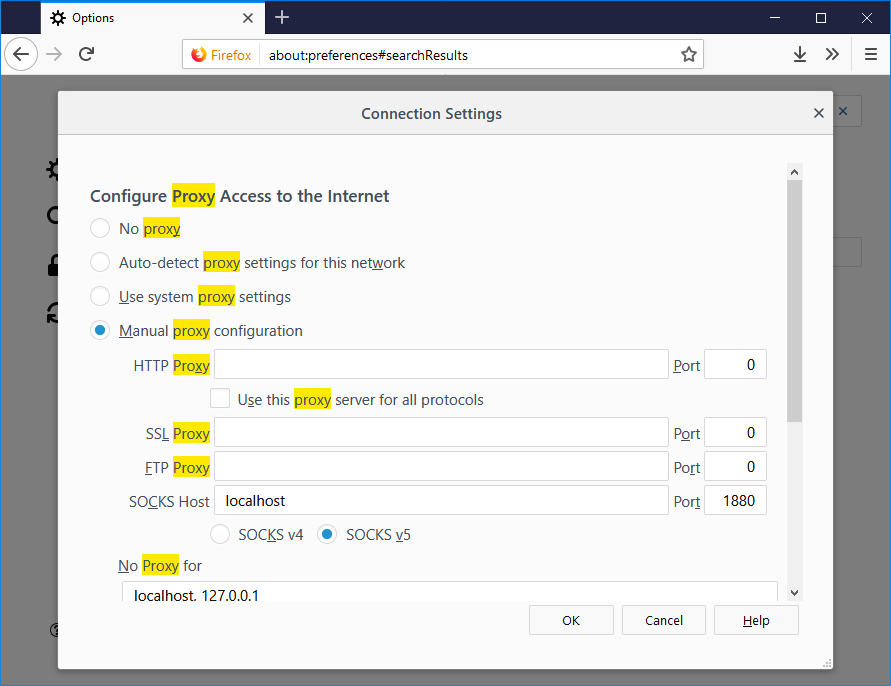
Now go to the Proxy settings in Firefox. You can open new tab, type about:preferences, hit enter, search proxy.
Set to Manual proxy configuration, then under SOCKS Host put localhost and the port number from Putty above, 1880 in our case.
You should now be running over the proxy, can test by running a whats my ip address.
This can be particularly useful in cases where you need to access a local IP address range on something like a Ubiquiti radio or router. Or you need to check something from a different IP address.
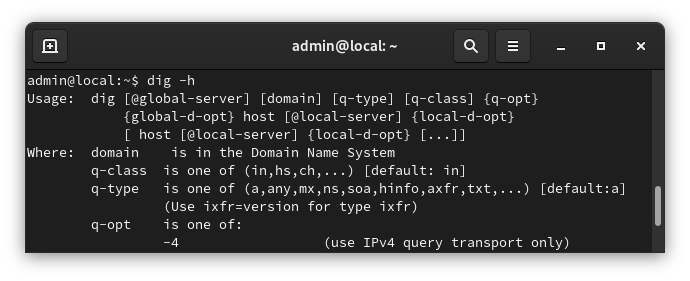
Dig is a DNS lookup utility. It is included in most Linux distributions by default, but if it isn’t you can easily install dig with the following command.
The dig utility is apart of the dnsutils package
sudo apt-get install dnsutils -y
After it is installed, we can verify that it is working with
dig -v
For more information on how to use dig, refer to the following link.
The following is copied and pasted from the dig man page.
NAME
dig - DNS lookup utility
SYNOPSISdig [@server] [-baddress] [-cclass] [-ffilename] [-kfilename] [-m] [-pport#] [-qname]
[-ttype] [-v] [-xaddr] [-y[hmac:]name:key] [[-4] | [-6]] [name] [type] [class]
[queryopt...]
dig [-h]
dig [global-queryopt...] [query...]
DESCRIPTIONdig is a flexible tool for interrogating DNS name servers. It performs DNS lookups and
displays the answers that are returned from the name server(s) that were queried. Most DNS
administrators use dig to troubleshoot DNS problems because of its flexibility, ease of use
and clarity of output. Other lookup tools tend to have less functionality than dig.
Although dig is normally used with command-line arguments, it also has a batch mode of
operation for reading lookup requests from a file. A brief summary of its command-line
arguments and options is printed when the -h option is given. Unlike earlier versions, the
BIND 9 implementation of dig allows multiple lookups to be issued from the command line.
Unless it is told to query a specific name server, dig will try each of the servers listed
in /etc/resolv.conf. If no usable server addresses are found, dig will send the query to the
local host.
When no command line arguments or options are given, dig will perform an NS query for "."
(the root).
It is possible to set per-user defaults for dig via ${HOME}/.digrc. This file is read and
any options in it are applied before the command line arguments. The -r option disables this
feature, for scripts that need predictable behaviour.
The IN and CH class names overlap with the IN and CH top level domain names. Either use the
-t and -c options to specify the type and class, use the -q the specify the domain name, or
use "IN." and "CH." when looking up these top level domains.
SIMPLEUSAGE
A typical invocation of dig looks like:
dig @server name type
where:
server
is the name or IP address of the name server to query. This can be an IPv4 address in
dotted-decimal notation or an IPv6 address in colon-delimited notation. When the
supplied server argument is a hostname, dig resolves that name before querying that name
server.
If no server argument is provided, dig consults /etc/resolv.conf; if an address is found
there, it queries the name server at that address. If either of the -4 or -6 options are
in use, then only addresses for the corresponding transport will be tried. If no usable
addresses are found, dig will send the query to the local host. The reply from the name
server that responds is displayed.
name
is the name of the resource record that is to be looked up.
type
indicates what type of query is required — ANY, A, MX, SIG, etc. type can be any valid
query type. If no type argument is supplied, dig will perform a lookup for an A record.
Next run “mca-provision-list” to list the connection(s) the radio has, or is trying to connect to. If you have had the radio connected to multiple AirControl servers it will show more than one entry.
To remove, run “mca-provision-rm” with the AirControl address. You can simple use the “http://server-ip”, shouldn’t have to worry about the port number/AC2/report.
Example:
XM.v6.1.3# mca-provision-rm http://192.168.0.1
Found 1 entries matching 'http://192.168.0.1':
Removing: unknown @ http://192.168.0.1:9081/AC2/report ...
Found Backup1 on[1] ...
Found Active on[2] ...
Storing Active[1] ... [%100]
Active->Backup[2] ... [%100]
done.
XM.v6.1.3#
Copy and paste the following into a file named mtbypass.sh and then “chmod +x mtbypass.sh” Or download from this direct link. Be sure to change the username and password
#!bin/bash
filelist="bypasslist.txt"
username="admin"
password="password!"
ip="$1"

for i in `cat ${filelist}`
do
address=`echo $i | cut -d= -f1`
mac=`echo $i | cut -d= -f2`
sshpass -p ${password} ssh ${username}@${ip} "ip hotspot ip-binding add address=${address} mac-address=${mac} type=bypassed"
done
Now create a file named bypasslist.txt and put all the addresses you want bypassed. You’ll need the Mac Address and the IP Address.
Received this error while trying to access LibreNMS in web browser.
Error: Missing dependencies! Run the following command to fix:
./scripts/composer_wrapper.php install –no-dev
Tried sshing into the LibreNMS server and running the script, but that didn’t fix the issue.
Ran ./validate.php and it came up with the some of the following errors.
[FAIL] Missing PHP extension: mbstring
[FIX] Please install mbstring
[FAIL] The poller (localhost.localdomain) has not completed within the last 5 minutes, check the cron job.
[WARN] Your install is over 24 hours out of date, last update: Thu, 7 May 2018 19:18:35 +0000
[FIX] Make sure your daily.sh cron is running and run ./daily.sh by hand to see if there are any errors.
Installed mbstring. You may need to change the number if yum is complaining about package conflicts. Use “yum search mbstring” to show all the versions available.
yum install php71w-mbstring
Ran ./validate.php again and it wanted this script run
This website stores cookies on your computer. These cookies are used to provide a more personalized experience and to track your whereabouts around our website in compliance with the European General Data Protection Regulation. If you decide to to opt-out of any future tracking, a cookie will be setup in your browser to remember this choice for one year.

 You should now be running over the proxy, can test by running a whats my ip address.