Setting up Proxy over SSH on Linux

Initiate a ssh connection to the server or device you want to use as a proxy. You can change the port to something else if so desired.

ssh username@ipaddress -D 1880

Log in and leave the session running

You can now setup your computer or browser to use the Proxy.
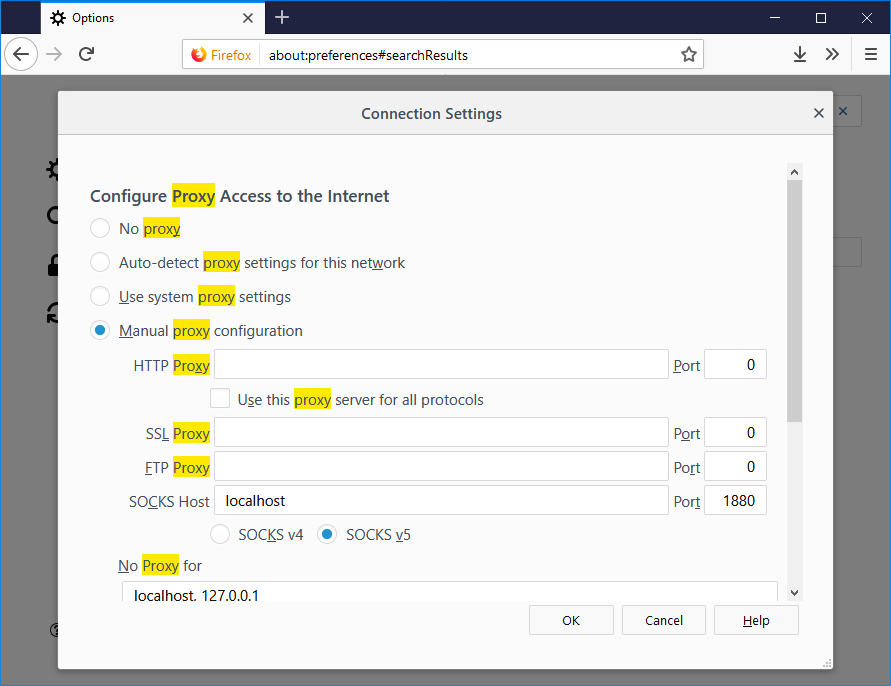
Specify SOCKS Host, hostname is either localhost or 127.0.0.1, the port is 1880.

Firefox example below.

Links on sending/receiving imessages with applescript or bash

https://apple.stackexchange.com/questions/331468/bash-script-detect-received-imessage-along-with-its-contents

Command line program to send imessage messages
https://github.com/linjunpop/imessage

Chat bot
https://github.com/ZekeSnider/Jared

Run bash commands from Applescript
https://www.cyberciti.biz/faq/mac-osx-applescript-run-shell-script/

Applescript Documentation archive
https://developer.apple.com/library/archive/documentation/AppleScript/Conceptual/AppleScriptLangGuide/introduction/ASLR_intro.html

cnMaestro template for setting Username and Passwords for PMP gear

The following template can be used to set the user name and passwords for cambium pmp gear. Create a new template in cnMaestro, past in the following, change the passwordEncrypted to the hash of your password and run the config.

You can get the hashed password by pulling it out of a current radio config.

{
"userParameters": {
  "authenticationConfig": {
    "accounts": [ 
      { 
        "userName": "admin", 
        "level": 3, 
        "readOnly": false, 
        "passwordEncrypted": "188a934e0246ae248da19400fed83107a" 
      }, 
      { 
        "userName": "root", 
        "level": 3, 
        "readOnly": false, 
        "passwordEncrypted": "188a934e0246ae248da19400fed83107a" 
      } 
    ]
  }
 }
}

cnMaestro configuration for SNMPv3

The following works for setting the snmpv3 configuration on cambium 450i 900’s. Once applied it’ll run change the SNMP settings and reboot the radio.

You’ll need to find the hashed password which can be found in a config backup.
Change the SNMP username/community as needed.

{
"userParameters": {
"snmpConfig": {
"user2Group": 0,
"snmpv3EngineId": "007000a9840a003e464e7a",
"rwAuthPasswordEncrypted": "3e5h24a694a515e81abb6b25986cea91",
"commStringROnly": "rocommunitystring2",
"user2PrivPassword": "",
"user1AuthPassword": "",
"snmpv3AuthProt": 0,
"snmpv3TrapEnable": 0,
"snmpv3PrivProt": 0,
"snmpMibPerm": 1,
"roAuthPasswordEncrypted": "3e5h24a694a515e81abb6b25986cea91",
"commStringRW": "communitystring",
"userGroup1": 0,
"user1Enable": 0,
"snmpv3SecLvl": 2,
"user2Enable": 0,
"rwUserName": "Canopy",
"roUserName": "snmpv3user",
"roPrivPasswordEncrypted": "3e5h24a694a515e81abb6b25986cea91",
"userName1": "",
"snmpPort": 161,
"rwUserEnable": 0,
"trapDomainNameAppend": 0,
"rwPrivPasswordEncrypted": "3e5h24a694a515e81abb6b25986cea91",
"user1PrivPassword": "",
"userName2": "",
"user3PrivPassword": "",
"user2AuthPassword": "",
"userName3": "",
"user3Enable": 0,
"snmpTrapPort": 162,
"user3AuthPassword": "",
"user3Group": 0,
"trapDelayAfterBootup": 5,
"snmpIpAccessFilter": [
{
"address": "192.168.0.0",
"netmask": 24
},
{
"address": "10.0.1.0",
"netmask": 24
},
{
"address": "0.0.0.0",
"netmask": 0
},
{
"address": "0.0.0.0",
"netmask": 0
},
{
"address": "0.0.0.0",
"netmask": 0
},
{
"address": "0.0.0.0",
"netmask": 0
},
{
"address": "0.0.0.0",
"netmask": 0
},
{
"address": "0.0.0.0",
"netmask": 0
},
{
"address": "0.0.0.0",
"netmask": 0
},
{
"address": "0.0.0.0",
"netmask": 0
}
],
"snmpTrapAddresses": [
"0.0.0.0",
"0.0.0.0",
"0.0.0.0",
"0.0.0.0",
"0.0.0.0",
"0.0.0.0",
"0.0.0.0",
"0.0.0.0",
"0.0.0.0",
"0.0.0.0"
]
},
}

Unlock bootloader on Google Pixel (Sailfish)

Enable developer options By going to

Settings > System > About Phone > Developer options (Tap 7 times)

Enable OEM unlock in Developer settings

Reboot into recovery

If your one Verizon you may need to go through a couple extra steps to get the oem unlock to show up in the developer settings. More info here

Boot into twrp

fastboot img twrp.iso

Select the option in TWRP to sideload and sideload the Lineage iso

adb sideload lineage

Reboot install GAPPS

adb sideload gapps.zip

Mikrotik Safe Mode

Safe Mode is a configuration fail safe for Mikrotik routers. If enabled and you make a change that disconnects your session to the router, whatever changes were made will be rolled back, which should let you get back in the router.

If your in WinBox you can hit the Safe Mode button at the top left

If your in a telnet or ssh session just hit

ctrl + x

You should see the following to let you know that safe mode is active

[Safe Mode taken]

Hit ctrl + x again to release Safe Mode

Find IP address from command line on Linux

Using ip command

ip add

example output

bob@localhost:~$ ip add
1: lo: mtu 65536 qdisc noqueue state UNKNOWN group default qlen 1000
link/loopback 00:00:00:00:00:00 brd 00:00:00:00:00:00
inet 127.0.0.1/8 scope host lo
valid_lft forever preferred_lft forever
inet6 ::1/128 scope host
valid_lft forever preferred_lft forever
2: eno1: mtu 1500 qdisc mq state UP group default qlen 1000
link/ether 38:ea:a7:13:a4:fe brd ff:ff:ff:ff:ff:ff
inet 192.168.1.21/24 brd 192.168.1.1 scope global dynamic noprefixroute eno1
valid_lft 513sec preferred_lft 513sec
inet6 13ac::98fe::ae78:d1ff/64 scope link noprefixroute
valid_lft forever preferred_lft forever
bob@localhost:~$

ifconfig

You may need to install net-tools to use

ifconfig  

example output

bob@localhost:~$ ifconfig 
eno1: flags=4163 mtu 1500
inet 192.168.200.58 netmask 255.255.255.0 broadcast 192.168.1.21
inet6 13ac::98fe::ae78:d1ff prefixlen 64 scopeid 0x20
ether b8:ac:6f:91:01:e8 txqueuelen 1000 (Ethernet)
RX packets 184950632 bytes 9487577263452
RX errors 0 dropped 0 overruns 0 frame 0
TX packets 128473456 bytes 234612443785
TX errors 0 dropped 0 overruns 0 carrier 0 collisions 0

Using the hostname command

hostname -I

Output is just the IP address. Example below

192.168.1.21

Vim config file .vimrc

Line numbers

Turn line numbers on

:set nu

Turn line numbers off

:set nu!

Color Scheme

:colorscheme evening

Syntax Highlighting

Turn Syntax highlighting on

:syntax on

Turn Syntax highlighting off

:syntax off

Highlight all search terms

:set hlsearch

https://vim.fandom.com/wiki/Highlight_all_search_pattern_matches

You can add the following to your ~/.vimrc in Linux or ~\.vimrc in Windows so the options are used every time you run vim.

colorscheme evening 
syntax on
set hlsearch
set nu


Setup Samba share on Ubuntu

In the following commands change <user_name> and <share_name> to the user you want and the name of the share directory.

Install samba and samba client

sudo apt-get install samba smbclient

Setup Samba user

sudo useradd -m  <user_name>  --shell /bin/false &&  
sudo passwd <user_name>
sudo smbpasswd -a <user_name>

Create Share Directory

sudo mkdir "/home/<user_name>/<share_name>
sudo chown <user_name>:<user_name> /home/<user_name>/<share_name

Make share directory

mkdir /home/<user_name>/<share_name>

Configure Samba conf

Add the following to the bottom of the /etc/smb.conf file. Change the <folder_name>, <user_name> etc to the ones created above.

[<folder_name>] 
path = /home/<user_name>/
<folder_name> valid
users = <user_name>
read only = no

Bash script

You can use the following bash script to automatically install and setup a samba share. Create a file called smb.sh and paste the following in

!/bin/bash

# incredigeek.com
# Ubuntu Samba share auto setup
#
sambaUser="smbuser"
smbFolder="smb_share"
sudo apt-get install samba smbclient
sudo useradd -m ${sambaUser} --shell /bin/false
echo "Enter the password you want to use for the smb user. 4 times."
sudo passwd ${sambaUser}
sudo smbpasswd -a ${sambaUser}
sudo mkdir "/home/${sambaUser}/${smbFolder}"
sudo chown ${sambaUser}:${sambaUser} /home/${sambaUser}/${smbFolder}
sudo echo "[${smbFolder}]" >> /etc/samba/smb.conf
sudo echo "path = /home/${sambaUser}/${smbFolder}" >> /etc/samba/smb.conf
sudo echo "valid users = ${sambaUser}" >> /etc/samba/smb.conf
sudo echo "read only = no" >> /etc/samba/smb.conf
sudo systemctl restart smbd
echo "Samba setup script finished"
echo "Access via $(hostname -I)/${smbFolder} ; username = ${sambaUser} ; password = whatever you put in"

Make executable

chmod +x smb.sh

Execute script

sudo ./smb.sh