The following command sets up a container which we can later manipulate to start and stop the “service” You can specify where you want the UniFi files to reside if desired.
sudo docker container list
367c7a1465ec        jacobalberty/unifi:latest   "/usr/loca/bin/dock…" 15 minutes ago      Up 14 minutes (healthy) unifi-controller
List docker images on system
sudo docker images
jacobalberty/unifi   latest              baebbe301633        9 days ago          711MB
Stop container. Also stops the UniFi service. Change the ID to your container ID.
sudo docker stop 367c7a1465ec
Other notes
When setting up the Docker image, the directory specified was “/docker/unifi” so all the UniFi files are in there and it looks like if you manipulate the files, it makes the changes fine. At least for setting up the SSL certificates.
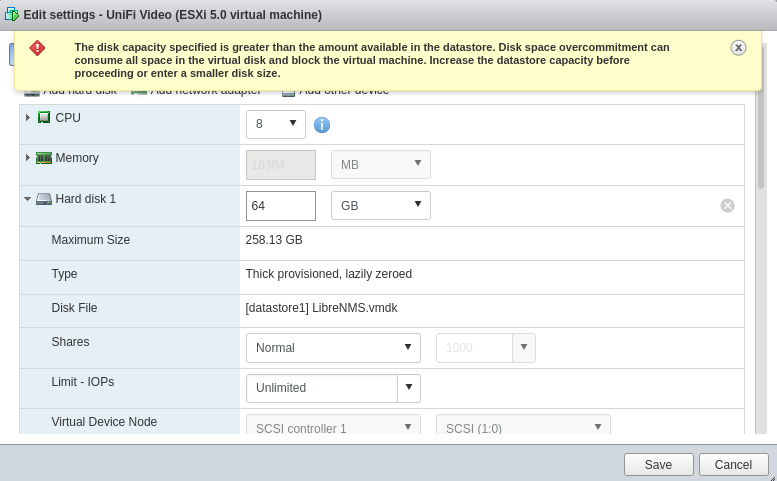
“The disk capacity specified is greater than the amount available in the datastore. Disk space overcommitment can consume all space in the virtual disk and block the virtual machine. Increase the datastore capacity before proceeding or enter a smaller disk size.”
Was able to work around the issue by Adding a comment line to the top of the file. May have to do with how the script I was using handles the lines.
### Email Import list mail.maildomain.com;user1@incredigeek.com;password1;mail.incredigeek.com;user2@incredigeek.com;password2
Script used to copy
#!/bin/sh
# $Id: sync_loop_unix.sh,v 1.6 2015/11/04 18:23:04 gilles Exp gilles $
#Example for imapsync massive migration on Unix systems.
#See also http://imapsync.lamiral.info/FAQ.d/FAQ.Massive.txt
#
Data is supposed to be in file.txt in the following format:
host001_1;user001_1;password001_1;host001_2;user001_2;password001_2; …
#Separator is character semi-colon ";" it can be changed by any character changing IFS=';' in the while loop below.
# Each line contains 6 columns, columns are parameter values for
--host1 --user1 --password1 --host2 --user2 --password2
and a trailing empty fake column to avoid CR LF part going
in the 6th parameter password2. Don't forget the last semicolon.
# You can add extra options after the variable "$@" Use character backslash \ at the end of each supplementary line, xcept for the last one. You can also pass extra options via the parameters of this script since they will be in "$@" The credentials filename "file.txt" used for the loop can be renamed by changing "file.txt" below. echo Looping on account credentials found in file.txt
echo
file="${1}"
{ while IFS=',' read  h1 u1 p1 h2 u2 p2 fake
    do
        { echo "$h1" | egrep "^#" ; } > /dev/null && continue # this skip commented lines in file.txt
        echo "==== Starting imapsync from host1 $h1 user1 $u1 to host2 $h2 user2 $u2 ===="
         imapsync --host1 "$h1" --user1 "$u1" --password1 "$p1" \
                  --host2 "$h2" --user2 "$u2" --password2 "$p2" \
                  "$@" --delete2
         echo "==== Ended imapsync from host1 $h1 user1 $u1 to host2 $h2 user2 $u2 ===="
         echo
    done
} < ${file}
Unzip the factory image and change directories into it
unzip blueline-factory-2020.03.04.16.zip && cd blueline-qq2a.200305.002/
Run the flash script to flash the image to your Pixel.
sudo ./flash-all.sh
Wait for it to flash, may take a long time.
NOTE: I ran into issues with the script as my version of fastboot was old. SEE PROBLEMS HEADING BELOW
Relock bootloader
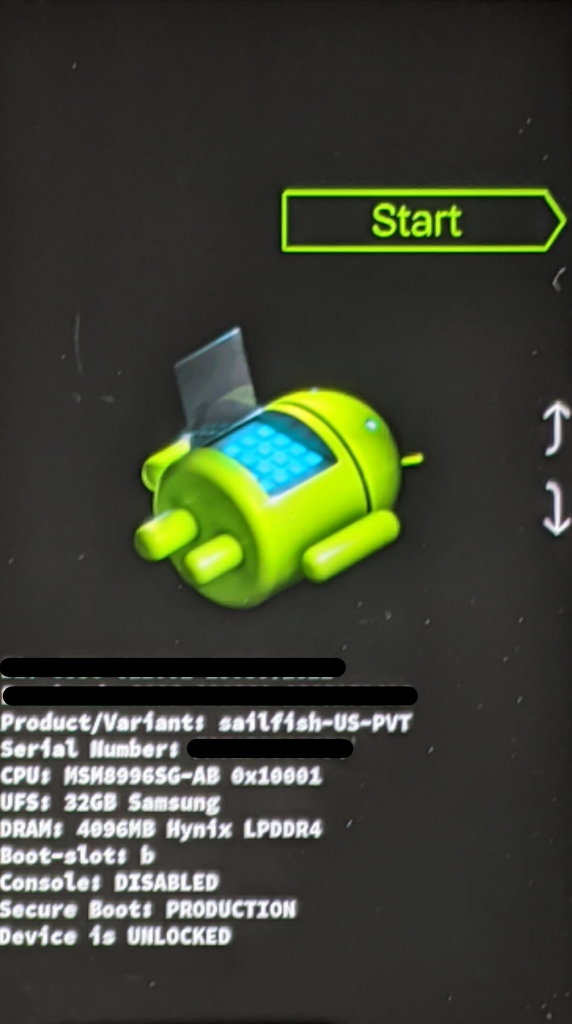
Boot back up into the recovery menu and lock the boot loader with
fastboot flashing lock
Problems
I ran into issues running the flash-all.sh script. My version of fastboot was old. Ended up downloading a newer version and calling all the commands in the script manually.
Phone seemed to randomly time out or just hang when trying to run something over fastboot. Unplugging and plugging the phone back in and rerunning the command seemed to resolve the problem.
This website stores cookies on your computer. These cookies are used to provide a more personalized experience and to track your whereabouts around our website in compliance with the European General Data Protection Regulation. If you decide to to opt-out of any future tracking, a cookie will be setup in your browser to remember this choice for one year.