If the Volume Group or LVM Volume is different, you will need to change the name in the above command. You can use the “sudo pvdisplay” and “sudo lvdisplay” to show you details about your volumes.
Bob is the companies local Linux administrator. He has been tasked with creating a secure shared SFTP folder so members in the R&D department can securely collaborate on “The New Project”.
Bob immediately recognizes a potential difficulty. If Steve and John are working on a prototype, how will John be able to edit Steve’s file if the user permissions are set to only allow John to read?
Bob first goes to the break room to locate a coffee mug.
After consulting Google and the man pages for sftp, sftp-server, sshd_config, sshd he found out what he needed to do.
Create directory for the share
Create a user group
Create the individual users and add them to the user group
Modify the sshd_config
Restart the SSHD service and verify that it works
Create Directory for SFTP Share Directory
First Bob needed a directory to hold the R&D files.
For some reason, he ran into issues with the folder getting set to the 775 permission which caused issues with logging in. Manually changing it to 755 fixed that issue.
Create User Group
Now Bob needs a user group to add everyone to.
sudo groupadd rdsftp
Now on to creating the users. Since we are just using the accounts for SFTP, we are setting the nologin option. None of these users will be able to use ssh to log on to the server.
Use the sftpadmin user as an “admin” user and change the “home” directory permissions
chown -R adminuser:rdsftp /sftp/rdfiles
Modify sshd_config file
There are a couple things that need to be changed in the sshd_config file to make this all work.
sudo vi /etc/sshd_config
At the bottom of the file, Bob adds
# R&D SFTP share settings
Match Group rdsftp
        ChrootDirectory /sftp/rdshare/          # <- chroots the users into this directory
        ForceCommand internal-sftp -u 0002      # <- -u for umask.  Needed so users have write permissions for all files
This will chroot all the users into the /sftp/rdshare directory which makes /sftp/rdshare the users / directory.
The -u umask option is the secret for getting all the users to manage all the files. Without it, John would not be able to update Steve’s inventory file.
Restart services and test
Now we can restart the ssh server
sudo systemctl resart sshd
And verify that john can log in.
sftp john@localhost
Any existing sessions will need to be terminated for the changes to take effect.
We’ll be using telnet to connect to a mail server and send ourselves an email.
The parts in bold are the commands to enter.
[bob@linux ~]$ telnet mail.website.com 25
Trying mail.website.com...
Connected to mail.website.com.
Escape character is '^]'.
220-mail.website.com ESMTP Exim 4.85 #2 Mon, 09 May 2022 22:12:59
220-We do not authorize the use of this system to transport unsolicited,
220 and/or bulk e-mail.
HELO domainto.sendfrom.com
250 mail.website.com Hello domainto.sendfrom.com [192.168.1.2]
MAIL FROM: <bob@incredigeek.com>
250 OK
RCPT TO: <bob@incredigeek.com>
250 Accepted
DATA
354 Enter message, ending with "." on a line by itself
Subject: Test MessageThis is a test.
250 OK id=5a1g7i-1347MT-1p
QUIT
221 mail.website.com closing connection
Connection closed by foreign host.
Bob has a computer running Fedora. When he installed Fedora he didn’t setup the root password and locked the root account. That is best practice. Right? Then one day he goes to upgrade to the latest version of Fedora and types in
sudo dnf update
and is greeted with
sudoers. This incident will be reported.
What happened? I had access before? Bob thinks to himself. Seems like I am not in the wheel group anymore. Bob being a smart person decides to attempt recovery mode. He’ll boot up and just readd his user to the wheel group.
Recovery mode starts up and then fails due to the root account being locked. What?!
Bob then starts talking to himself as he is in need of some expert advice. What other options do I have. I know! He runs to find his handy dandy Live Fedora pen drive. Plugs it in and boots up into a live version of Fedora. Now I can mount and access the main drive.
But wait, I can’t run “usermod -G wheel bob” because that will only affect the Live System. I could chroot into the drive. That would require mounting some extra mount points. Is there a faster way? We could maybe edit the /etc/group and add “wheel:x:10:bob”. That should add bob back to the wheel group. Right?
Wait, what about the sudoers file. We are normally supposed to use “sudo visudo” command to modify the file. Let’s check the file and see if we can just manually edit it.
$ stat -c "%n %a" /etc/sudoers
/etc/sudoers 440
$
Permissions on /etc/sudoers file
Hmm, okay I am going to need to change permissions to save the file. Let’s chmod that to 644 temporarily
$ sudo chmod 644 /etc/sudoers
Alright now I should be able to edit it.
$ sudo vi /etc/sudoers
Okay, now I need to explicitly give myself permission to use sudo. Where is that line. Ah-ha!
root ALL=(ALL) ALL
Lets duplicate that with yy and p, replace root with my username.
root    ALL=(ALL)       ALL
bob     ALL=(ALL)       ALL
Save that with esc then :wq enter
Now change the file permissions back
sudo chmod 400 /etc/sudoers
Reboot the system and now lets login and test sudo.
$ sudo whoami
root
Success!
Bob, satisfied that the problem is resolved, rewards himself by getting a sandwich.
The following command adds the ~/script_folder to our PATH paths. Once run, we’ll be able to call any script in the script folder like it was a system utility.
PATH="$HOME/script_folder/:$PATH"
If you would like to always be able to call any file in your scripts folder, add the above command to your ~/.bashrc file.
You may need to restart your session for it to work.
Issue was not being able to import a video into Peertube using a URL.
Peertube was set up to use youtube-dl which is in /var/www/peertube/storage/bin/youtube-dl. Further investigation showed that Peertube calls it with python.
For example
python youtube-dl video-to-download
Usually Python refers to Python 2 where as Python3 refers to Python 3.
We can create a symlink so that python = python3
sudo ln -s /usr/bin/python3 /usr/bin/python
This way when Peertube runs python, it technically will run it with python3.
Note you will probably run into issues if you do have Python 2 installed and need it. In my case, python was not installed and didn’t reference anything.
While the UniFi controller is nice and everything, it does make it hard to see if a device is already adopted. At least if you have a ton of sites. Fortunately, we can search the database directly to find out if a UniFi is already adopted and which site it is assigned to.
Connect to Mongo DB
First we need to connect to MongoDB. And then we need to use the ace database.
mongo -port 27117
use ace
List all the devices on the controller
This command will list all the devices on the controller. Regardless of which site they are assigned to.
db.device.find({}, { site_id:"", ip : "", name :"", mac:""})
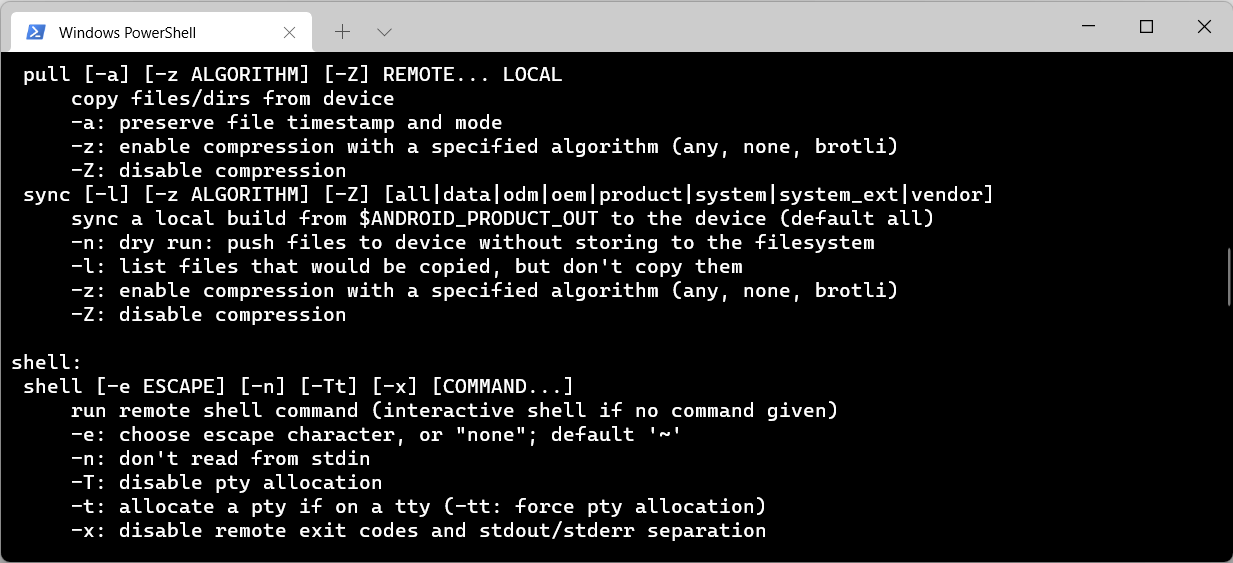
It is sometimes helpful to pull an APK from a working device so you can install it on a different device. These commands should work on an emulator, phone, tablet, or other Android device. You just need to be able to connect with ABD.
Connect to device with ADB
View installed apps
Find path for APK
Pull/Download APK
View Installed Apps
This will display a list of all the installed packages.
adb shell pm list packages
Find path for specific App/APK
Replace com.android.apk with the app of interest.
adb shell pm path com.android.apk
Pull APK to local machine
Pull/Download the APK of interest to your local machine with the following command. Change the path “/data/app/…” to the path returned from the previous command.
adb shell pull /data/app/info/base.apk
You can view the following link for more information.
In this case our second user id is 11. To get a list of APKs installed for our second user we would specify the –user= option
adb shell pm list packages --user=11
To get the path for the app we would run it with
adb shell pm path --user=11 com.android.apk
Split APKs
Split APKs can be slightly more difficult to manage, mainly due to the fact that there are multiple APKs to keep track of.
When you run the “pm path” command, it should return multiple APKs. Use the pull command like normal, but download each APK.
You’ll need to use a split APK installer to install all the APKs.
PowerShell script for Pulling/Downloading all APKs on Device
The following PowerShell script will download all APKs for a specific user and put them in their own folders.
Copy the contents to a .ps1 file
Enable ps1 execution policy if not already enabled
Run PowerShell script.
This script will pull all the APKs off of a device and put them in the current folder. It will also download split APKs.
# adbapkbackup uses adb to get a list of all the APKs you have on a phone and then
# Creates folders for each app and downloads the APKs for those apps.

# Copy and save code as a ps1 file

# Enable ps1 scripts to run on your computer by launching an Admin promopt and running
# set-executionpolicy remotesigned

# If you are in a secondary profile, add and/or modify
#  "--user 15"
# to your user id
# adb shell pm list users

# If in secondary profile, add "--user 15" after packages before > apklist.txt
adb shell pm list packages --user 15 > apklist.txt

 $apks = ((Get-Content .\apklist.txt)) -replace 'package:',''

 ForEach ($apk in $apks) {
    echo "APK is $apk"
    md $apk
    # If in secondary profile, add "--user 15" after path, before $file
    adb shell pm path $apk
    $filepath = ((adb shell pm path --user 15 $apk | % {$_.replace("package:","")}))
    ForEach ($lapk in $filepath | % {$_.replace("package:","")}) {
        echo "pulling $lapk $apk"
        adb pull $lapk $apk
    }
 }
Using the above list, we can view a Mikrotik .backup file in a hex editor like GHex or dump it with xxd.
This website stores cookies on your computer. These cookies are used to provide a more personalized experience and to track your whereabouts around our website in compliance with the European General Data Protection Regulation. If you decide to to opt-out of any future tracking, a cookie will be setup in your browser to remember this choice for one year.