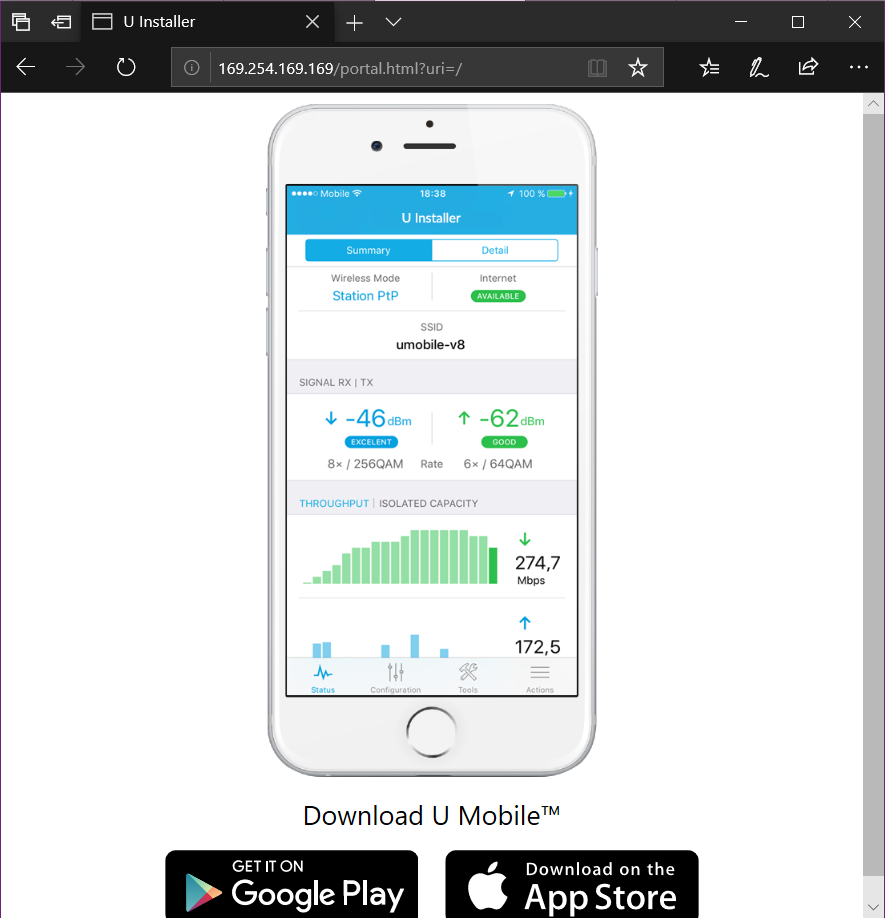
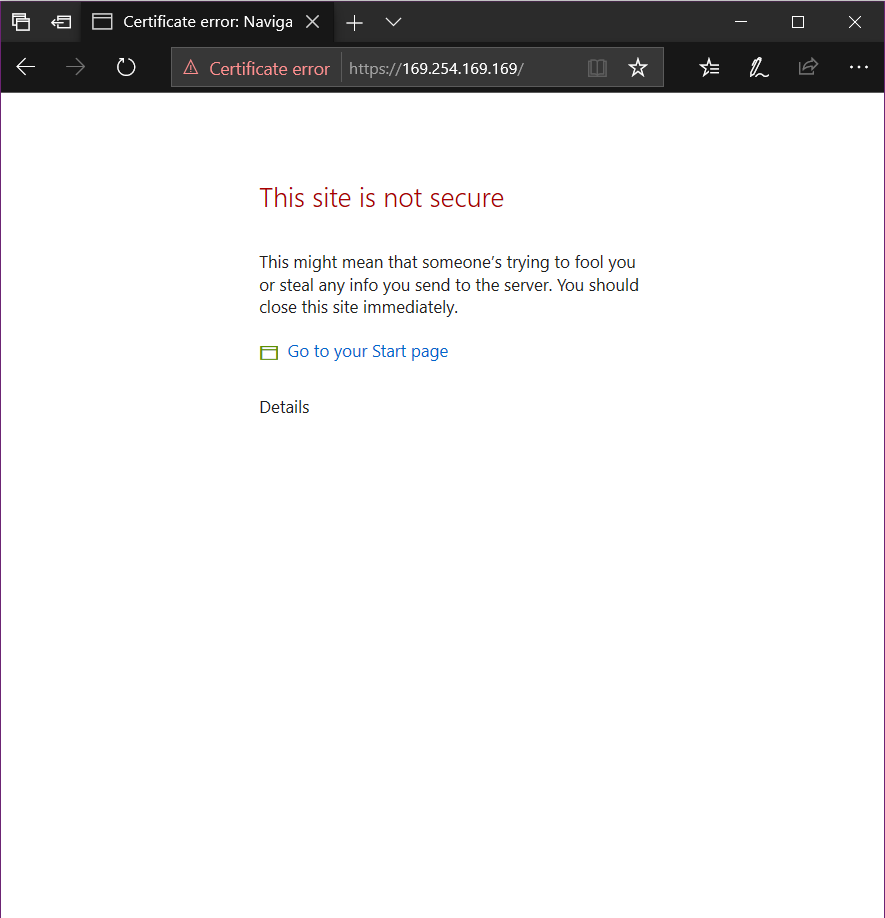
By default the U Installer redirects you to a page asking you to download the app. You can get to the actual U Installer web page by going to https://169.254.169.169
It has the same interface as a regular Airmax M equipment.


By default the U Installer redirects you to a page asking you to download the app. You can get to the actual U Installer web page by going to https://169.254.169.169
It has the same interface as a regular Airmax M equipment.
Recently upgraded a UniFi-Video VM by creating a new VM and restoring the backup from the previous one. There was a separate virtual disk used for storing all the videos. Although once I reattached it, I had to change the owner to the unifi-video user. lt was reporting that the owner/group was 127 and 134, looks like that was the user ID from the previous VM.
Example output from ls -hla command
drwxr-xr-x 3 127 134 4.0K Jan 16 2020 176de761-8399-3bed-8ceb-917cbe4d25bd
drwxr-xr-x 2 127 134 4.0K Sep 10 12:28 21d506ef-dded-31f2-baf8-c109a7e653b9
drwxr-xr-x 4 127 134 4.0K Jan 1 2020 1a3afc4c-a030-39a1-b139-857444c8b71c
Ended up changing the owner to the unifi-video owner with the chown command. /path/to/videos is the mount point of the video drive.
chown -R unifi-video:unifi-video /path/to/videos
You should be able to copy and paste all the following commands in. You can check the status of the commands after with
sudo ufw status
sudo ufw allow 3478/UDP
sudo ufw allow 5514/UDP
sudo ufw allow 8080/TCP
sudo ufw allow 8443/TCP
sudo ufw allow 8880/TCP
sudo ufw allow 8843/TCP
sudo ufw allow 6789/TCP
sudo ufw allow 27117/TCP
sudo ufw allow 10001/UDP
sudo ufw allow 1900/UDP
sudo ufw allow 7080/TCP
sudo ufw allow 7443/TCP
sudo ufw allow 7445/TCP
sudo ufw allow 7446/TCP
sudo ufw allow 7447/TCP
sudo ufw allow 10001/UDP
sudo ufw allow 6666/TCP
sudo ufw allow 7004/UDP
sudo ufw allow 7442/TCP
https://help.ui.com/hc/en-us/articles/217875218-UniFi-Video-Ports-Used
https://help.ui.com/hc/en-us/articles/218506997-UniFi-Ports-Used
Basic steps are
The passwd command is normally used for changing the password for a Linux user. We’ll use it to change our user password and then copy the hash out of the /etc/passwd file to use in the Ubiquiti config file.
UVC.v4.18.37.67# passwd
Changing password for admin
New password:
Retype password:
passwd: password for admin changed by admin
UVC.v4.18.37.67#
Using “cat /etc/passwd”, we can get what the new password hash is and can copy that into the /tmp/system.cfg file.
UVC.v4.18.37.67# cat /etc/passwd
admin:$6$K4VfN1jGcxaX63Eo$yMGBg7jgCCg.HorkmkQf9wnQcEko.1onZcAa6ua421LonYgfYr8FgHprrwkMqaTYzH0KqCtOEPqDlB3AvkvcW.:0:0:Administrator:/etc/persistent:/bin/sh
UVC.v4.18.37.67#
Open up the /tmp/system.cfg config file, find the section below and replace the hash part, i.e. the part that is in bold.
users.1.name=admin
users.1.password=$6$K4VfN1jGcxaX63Eo$yMGBg7jgCCg.HorkmkQf9wnQcEko.1onZcAa6ua421LonYgfYr8FgHprrwkMqaTYzH0KqCtOEPqDlB3AvkvcW.
users.1.status=1
As a side note, you can copy and past all of the “users.1.*” lines and change the 1 to 2 and have a second user.
You can use the following command to write the changes and then reboot the camera.
cfgmtd -f /tmp/system.cfg -w && reboot
[admin@localhost ~]$ ssh ubnt@10.96.1.91
ubnt@10.96.1.91's password:
BusyBox v1.29.2 () built-in shell (ash)
UVC.v4.18.37.67# passwd
Changing password for admin
New password:
Retype password:
passwd: password for admin changed by admin
UVC.v4.18.37.67# cat /etc/passwd
admin:$6$K4VfN1jGcxaX63Eo$yMGBg7jgCCg.HorkmkQf9wnQcEko.1onZcAa6ua421LonYgfYr8FgHprrwkMqaTYzH0KqCtOEPqDlB3AvkvcW.:0:0:Administrator:/etc/persistent:/bin/sh
UVC.v4.18.37.67# vi /tmp/system.cfg <- Edit the text file and replace the hash with the one from above
UVC.v4.18.37.67# cfgmtd -f /tmp/system.cfg -w && reboot
https://help.ui.com/hc/en-us/articles/204977444-airFiber-Updating-the-Firmware
Quick list of commands
ssh ubnt@192.168.1.20  <- Replace with username and IP address
cd /tmp
wget http://dl.ui.com/firmwares/airfiber11X/v4.1.0/AF11.v4.1.0.bin
mv AF11.v4.1.0.bin fwupdate.bin
/sbin/fwupdate -m
/sbin/fwupdate -m
Wait for it to finish upgrading
Pull UniFi 5.6.42 docker image
sudo docker pull jacobalberty/unifi:5.6.42
Install image
sudo docker run -d --init --restart=unless-stopped --name=unifi-controller --net=host --volume=/docker/unifi:/var/lib/unifi -p 8080:8080/tcp -p 8081:8081/tcp -p 8443:8443/tcp -p 8843:8843/tcp -p 8880:8880/tcp -p 8883:8883/tcp -p 3478:3478/udp jacobalberty/unifi:5.6.42
Access and setup the unifi controller from a browser.
https://ip-address:8443
Log files are located in /home/unms/data/logs
larry@localhost:~$ sudo tail -f /home/unms/data/logs/unms.b5a3713b02f71e06fb3a84a3a9a75c558.log
{"msg":"setting permissions on /home/app/unms/data/control","name":"unknown","hostname":"unknown","pid":0,"v":0,"level":30,"tag":"unms","time":"2020-04-17T16:28:35+00:00"}
{"msg":"Linking /home/app/unms/public/site-images -> /home/app/unms/data/images","name":"unknown","hostname":"unknown","pid":0,"v":0,"level":30,"tag":"unms","time":"2020-04-17T16:28:35+00:00"}
{"msg":"Linking /home/app/unms/public/firmwares -> /home/app/unms/data/firmwares","name":"unknown","hostname":"unknown","pid":0,"v":0,"level":30,"tag":"unms","time":"2020-04-17T16:28:35+00:00"}
{"msg":"Stepping down from root: su-exec \"/usr/local/bin/docker-entrypoint.sh\" \"index.js\"","name":"unknown","hostname":"unknown","pid":0,"v":0,"level":30,"tag":"unms","time":"2020-04-17T16:28:35+00:00"}
{"msg":"Running docker-entrypoint index.js","name":"unknown","hostname":"unknown","pid":0,"v":0,"level":30,"tag":"unms","time":"2020-04-17T16:28:35+00:00"}
{"msg":"Version: 1.1.6+e6ec4747d.2020-03-13T10:52:14+01:00","name":"unknown","hostname":"unknown","pid":0,"v":0,"level":30,"tag":"unms","time":"2020-04-17T16:28:35+00:00"}
{"msg":"Waiting for database containers","name":"unknown","hostname":"unknown","pid":0,"v":0,"level":30,"tag":"unms","time":"2020-04-17T16:28:35+00:00"}
{"msg":"psql: fe_sendauth: no password supplied","name":"unknown","hostname":"unknown","pid":0,"v":0,"level":30,"tag":"unms","time":"2020-04-17T16:28:35+00:00"}
{"msg":"nc: bad address 'unms-redis'","name":"unknown","hostname":"unknown","pid":0,"v":0,"level":30,"tag":"unms","time":"2020-04-17T16:28:35+00:00"}
sudo ~unms/app/unms-cli stop
sudo ~unms/app/unms-cli start
sudo ~unms/app/unms-cli fix-redis-aof
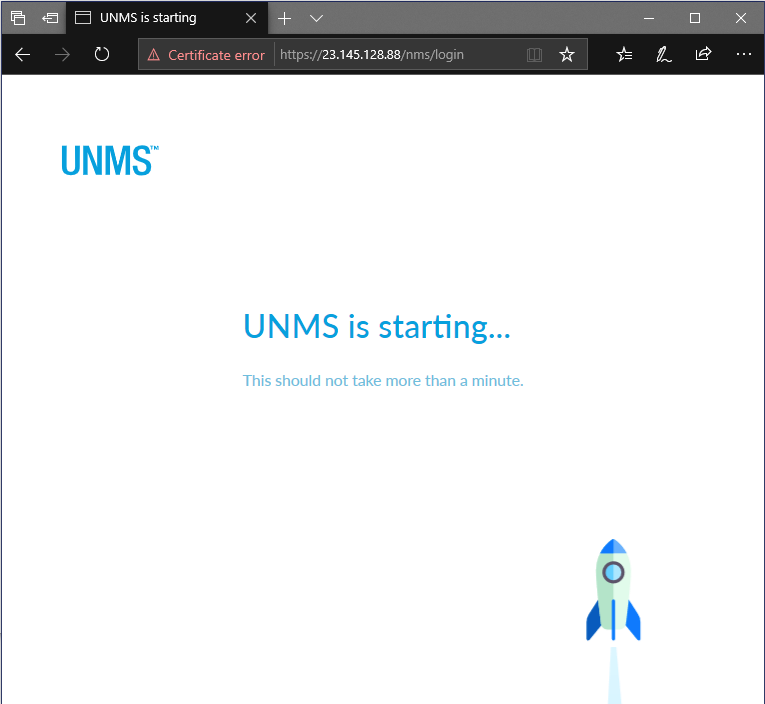
Running the above command resolved the problem and let UNMS start working.
larry@localhost:~$ sudo ~unms/app/unms-cli stop
larry@localhost:~$ sudo ~unms/app/unms-cli fix-redis-aof
Creating network "unms_internal" with the default driver
Creating network "unms_public" with the default driver
Creating unms-fluentd
The AOF appears to start with an RDB preamble.
Checking the RDB preamble to start:
[offset 0] Checking RDB file --fix
[offset 26] AUX FIELD redis-ver = '5.0.5'
[offset 40] AUX FIELD redis-bits = '64'
[offset 52] AUX FIELD ctime = '1587130996'
[offset 67] AUX FIELD used-mem = '276217328'
[offset 83] AUX FIELD aof-preamble = '1'
[offset 85] Selecting DB ID 0
[offset 80304063] Checksum OK
[offset 80304063] \o/ RDB looks OK! \o/
[info] 3307 keys read
[info] 0 expires
[info] 0 already expired
RDB preamble is OK, proceeding with AOF tail…
0x 79b7264: Expected prefix '*', got: '
AOF analyzed: size=127631360, ok_up_to=127627876, diff=3484
This will shrink the AOF from 127631360 bytes, with 3484 bytes, to 127627876 bytes
Continue? [y/N]: Successfully truncated AOF
larry@localhost:~$ sudo ~unms/app/unms-cli start
On the forums they seemed to recommend stopping the service and running
sudo ~unms/app/unms-cli rewrite-redis-aof
I was getting the following error when trying to run this command. Running the above command worked though.
larry@localhost:~$ sudo ~unms/app/unms-cli stop
larry@localhost:~$ sudo redis-check-aof --fix ~unms/data/redis/appendonly.aof
The AOF appears to start with an RDB preamble.
Checking the RDB preamble to start:
[offset 0] Checking RDB file --fix
--- RDB ERROR DETECTED ---
[offset 9] Can't handle RDB format version 9
[additional info] While doing: start
[additional info] Reading type 0 (string)
[info] 0 keys read
[info] 0 expires
[info] 0 already expired
RDB preamble of AOF file is not sane, aborting.
larry@localhost:~$
https://community.ui.com/questions/ERROR-UNMS-is-starting-This-should-not-take-more-than-a-minute-/1010b107-dfd4-4c0f-b667-2f3cf4ef713b
https://community.ui.com/questions/UNMS-is-broken-after-upgrade-from-13-x-to-14-x/411ec85e-7a1b-4d17-bb12-34e449b4ae5a
Ran into an issue when trying to figure out some problems with UniFi and UniFi-Video. Upgrading both to the latest version was causing problems, because they both needed different versions of MongoDB.
Was getting the following error when trying to install MongoDB. Think I was trying to install Mongo following the instructions on their site and then it caused issues with apt.
dpkg: error processing archive /var/cache/apt/archives/mongodb-org-server_4.2.5_amd64.deb (--unpack):
 trying to overwrite '/usr/bin/mongod', which is also in package mongodb-server-core 1:3.6.3-0ubuntu1.1
dpkg-deb: error: paste subprocess was killed by signal (Broken pipe)
Removed the following file
rm /etc/apt/sources.list.d/mongodb-org-4.2.list
and was able to use apt again to install MongoDB. Didn’t end up solving my problem because I technically needed two versions, but at least apt was being nice again. Ended up installing the UniFi controller docker container and can run both on the same server that way.